FIRST USE
After installation, start AutoCAD and SDBOX should load automatically.
Please wait until SDBOX finishes loading.
SDBOX is ready when the
=sdbox=,
=Maps= and
=Arch= tabs appear in the Ribbon,
or the =sdbox= menu appears.
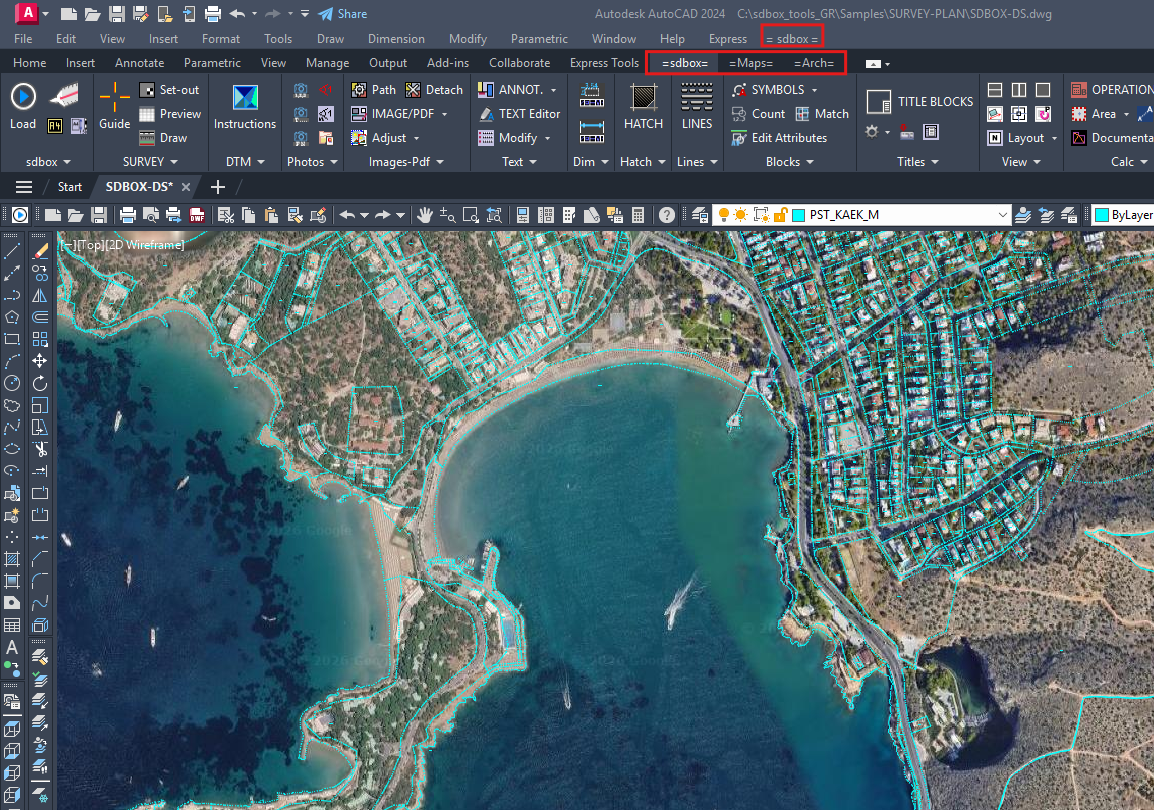
In every drawing where you want to use SDBOX, click “Load SDBOX” from the =sdbox= Ribbon tab or menu.
IF SDBOX DOES NOT LOAD AUTOMATICALLY
Type APPLOAD in the command line.
In the window that opens, go to:
C:\sdbox_Tools
Select the file:
_CADsdbox.lsp
Click Load, then close the window.
If a “Save changes?” message appears, select Yes.
If a security warning appears, select Allow or Always Load.
If security warning messages appear frequently, you may set
SECURITY to Low while using SDBOX,
provided that SDBOX is installed from the official installer.
Type SECURITY in the command line and select Low.
SDBOX Online
SDBOX Design Software
5 Syngrou Avenue
Athens 11743, Attica, Greece
Tel.: +30 210 671 5739
Mob.: +30 693 724 5046
Email: cad@sdtopo.net
5 Syngrou Avenue
Athens 11743, Attica, Greece
Tel.: +30 210 671 5739
Mob.: +30 693 724 5046
Email: cad@sdtopo.net