Phrase Selection from Dialog
SDBox Design Software - Guide for selecting phrases from libraries to add text or write to Attribute Blocks during various SDBOX commands
Overview
Selection of phrase for adding text or writing to Attribute Block during the execution of various SDBOX commands.
The library of each command is different and you have the ability to save or remove phrases.
In each new Drawing, the corresponding library appears updated with any changes you have made.
For each command you have the ability to choose between two libraries that you have defined for two types of Drawings.
Below follows for the annotation command NNB. The same applies to all commands.
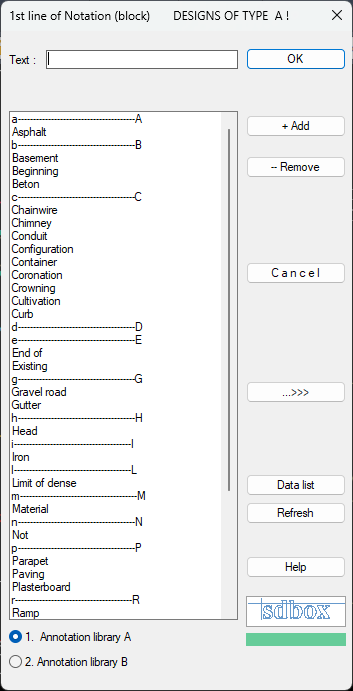
Phrase library dialog example (NNB command)
^ Back to topAdd Phrase
What is written in the field "Text:" is added to the List and will appear in each new use of the command in any drawing.
This allows you to build personalized libraries of frequently used phrases for each type of annotation or text insertion.
Usage:
When you find yourself repeatedly typing the same text in multiple drawings, add it to the library to save time in future work.
Remove Phrase
Removes from the List whichever phrase you have selected.
Use this to clean up your libraries by removing outdated, incorrect, or rarely used phrases.
Tip:
You can always add a removed phrase back later using the "Add" function if needed.
Cancel
No text is selected.
Use this option when you open the library dialog but decide not to insert any text at this point.
Note:
The command will continue execution as if no text selection was made, which may result in empty text attributes or prompts for manual text entry depending on the specific command.
Hide Dialog
The dialog is temporarily hidden and you can navigate the screen using the mouse wheel.
You return to the dialog with right-click and Exit.
This feature is useful when you need to see what's behind the dialog box to make a better selection or reference point.
Usage:
When the library dialog covers an important part of your drawing that you need to see to make a proper annotation placement.
Edit Library File
Opens the corresponding file that contains the library phrases where you can add or delete phrases.
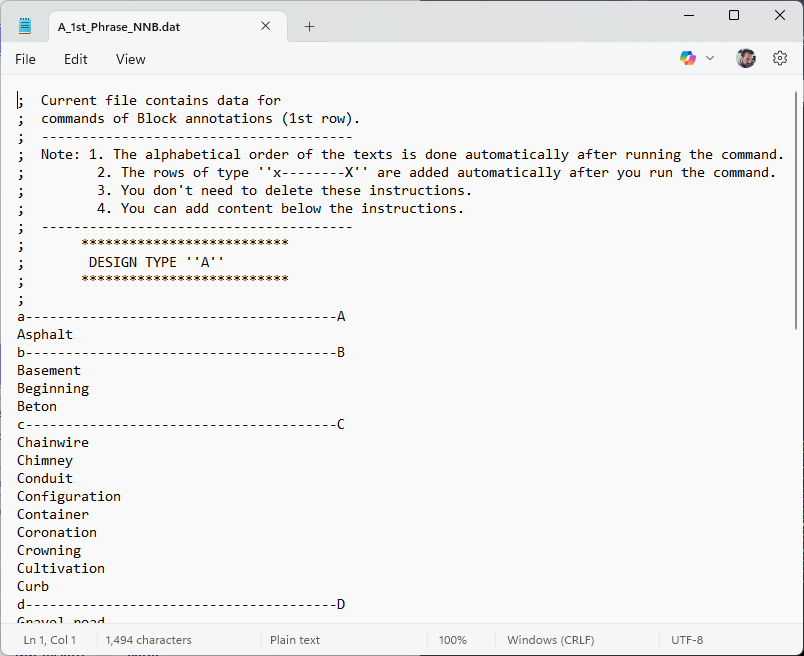
Direct editing of library file
This gives you direct access to the underlying text file that stores all phrases for the current command's library.
Important:
Changes made to the file directly will not appear in the dialog until you use the Refresh List function or restart the command.
Use a plain text editor to modify these files, preserving the file format and encoding.
Refresh List
The List is refreshed with any changes you made to the above file.
After editing the library file directly, use this function to update the dialog without needing to close and reopen it.
Tip:
Always refresh after making direct file edits to ensure you're seeing the current library contents.
Drawing Type A / Type B
Refers to the two types of libraries you can use for two types of Drawings.
If you press "Drawing Type B Annotations" then the phrases you have saved for Type B Drawings will appear in the List.
You can switch between the 2 libraries at any time in the Drawing.
The library type you select is defined for each subsequent command that uses libraries and the corresponding ones will appear in the Lists.
You can change the Drawing type again at any time.
Practical Application:
This feature allows you to maintain separate phrase libraries for different project types - for example, one set of annotations for residential projects and another for commercial projects, or different libraries for different clients with specific terminology requirements.
Note:
The library selection is persistent across commands within the same drawing session, providing consistent terminology throughout your work on a particular project type.