Block Selection Settings
SDBox Design Software - Configure block and attribute properties for various CAD commands
Overview
Select which Blocks and which Attributes of those Blocks will participate in each command.
This tab opens in various variations in commands with similar settings. Below, all fields are analyzed for all cases.
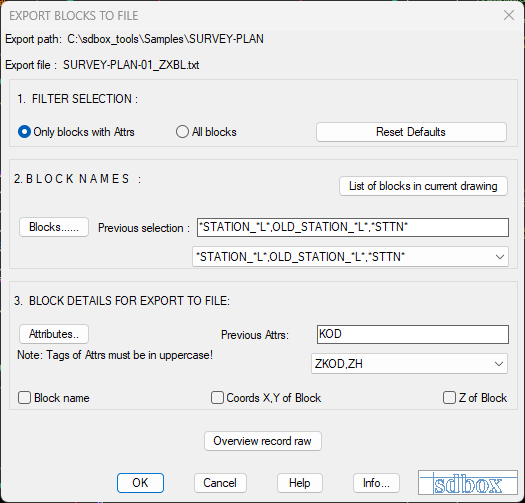
Block selection settings interface
Important:
In the first uses of commands, all program Blocks are defined depending on the category.
Interface Description
In this section, you choose how blocks will be selected for participation in commands.
 Only Blocks with Attributes
Select only Blocks with Attributes. Attributes are the parts of the Block that contain values (in text form) that the command can read.
 All Blocks
All Blocks are selected regardless of whether they have Attributes or not.
In this part of the tab, you select which Blocks will participate in the command (based on their name). If you want all to participate, you can type "*" in the field "Last selection Block:".
Drawing Block Selection
Opens the following tab which contains the names of the Blocks that exist in the Drawing and you can select which of them will participate in the command.
Select one at a time and after pressing OK, it is written in the field "Last selection Block:".
You can press the "Drawing Block" button as many times as you want and each new name will be written after the existing ones in the field "Last selection Block:" separated by a comma ",".
If you press cancel, nothing is written and the field "Last selection Block:" remains as is.
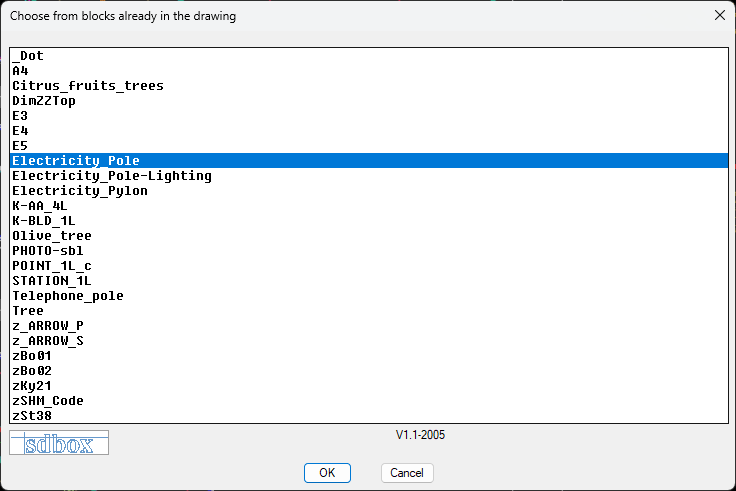
Drawing block selection dialog
Blocks...
You are transferred to the drawing screen and select with the mouse the Blocks you want to participate in the command by their name.
When you finish with the Block selections, the names of the Blocks you have selected are written in the field "Last selection Block:".
You can also simply write in this field or select from your List of previous selections.
Attributes
The same applies as above.
The order in which you write the Attributes matters for various commands.
Help
The Help button provides additional information and guidance for using the block selection settings.
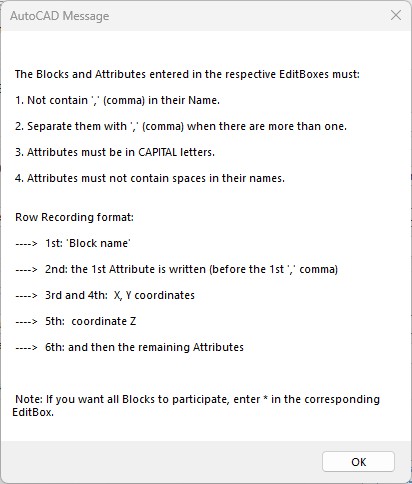
Help dialog for block selection settings
Usage Tips:
1. Use the "Drawing Block" button to quickly select blocks from your current drawing.
2. Use wildcard "*" to select all blocks when needed.
3. The order of attributes is important for commands that process multiple attributes.
4. Save your frequent selections for quick reuse in future commands.
Common Use Cases:
Topographic Surveys: Select specific survey point blocks with elevation attributes.
Architectural Plans: Choose door/window blocks with size and material attributes.
Electrical Diagrams: Select electrical symbol blocks with rating attributes.
Mechanical Drawings: Choose fastener blocks with size and material attributes.