SDTOPO Settings Management
SDBox Design Software - Configuration, export/import, plot styles, and maintenance commands for CAD add-on settings

Settings Toolbar
Default Settings for Topographic & Building Surveys DefZZTOPO
Sets the default suggested Layer, Color, Linetype, size coefficients, etc. that commands propose at their beginning, specifically adjusted for Building Surveys and Topographic drawings.
Description
This command configures the program defaults specifically for topographic and building survey work. It sets up:
- Layer naming conventions for different object types
- Color assignments for various elements
- Linetype definitions for different line categories
- Size coefficients for text, symbols, and annotations
- Plot style defaults for different scales
Notes:
These settings are defined in the corresponding fields in the command tabs. Running DefZZTOPO ensures all new drawings start with optimized settings for topographic and survey work.
Command Usage:
Run DefZZTOPO when starting a new topographic or building survey project to ensure all default settings are optimized for this type of work. Also use after installing SDTOPO on a new computer.
Tips:
After running DefZZTOPO, you can further customize individual settings in the command dialog boxes, then save your custom configuration with zzSavePropScadD for future use.
General Settings for All Disciplines DefScaddOp
Restores the program's default settings concerning suggested Layer, Color, Linetype, size coefficients, etc. that commands propose at their beginning.
Description
Resets all program settings to their factory defaults. This includes:
- Suggested Layer names for new objects
- Default Color assignments
- Standard Linetype definitions
- Size coefficients for different scales
- Other parameters that commands suggest at their beginning
These settings are defined in the corresponding fields in the command tabs.
Notes:
Use DefScaddOp when you want to return to the original program settings, or if your configuration has become corrupted or inconsistent.
Command Usage:
Run DefScaddOp to reset all settings to factory defaults. This is useful before starting a new project type, or when troubleshooting configuration issues.
Tips:
Before running DefScaddOp, consider exporting your current settings with zzSavePropScadD if you want to preserve any customizations you've made.
Export Settings for Use on Another Computer zzSavePropScadD
Exports the program settings (Layer, Color, Linetype, coefficients, etc. that commands propose at their beginning) to a file that can be loaded on another computer or different AutoCAD version.
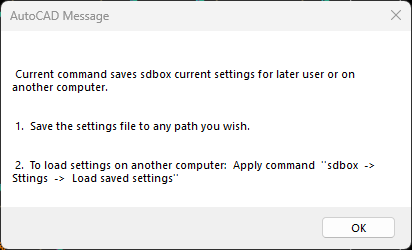
Settings export dialog - choosing save location
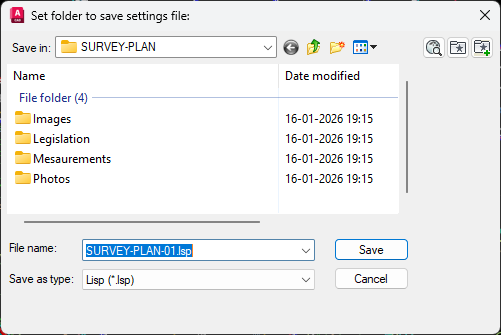
Settings export confirmation
Steps
- Run the command zzSavePropScadD.
- Choose save location and filename for the settings file.
- Settings are exported to a *.lsp file containing all your program configurations.
- Use this file on another computer or AutoCAD version with zzInsPropScadD.
OK Settings saved to file: C:\Users\User\CPU-1.lsp
Description
Exports to the location and with the name you desire a *.lsp file that contains the program settings as you have defined them on your computer.
This file can be loaded on another computer or different AutoCAD version with the following command (zzInsPropScadD).
You can use this command simply to save the settings you have made during program use and have the ability to restore them later.
Notes:
The exported file contains all your custom Layer names, Color assignments, Linetype preferences, size coefficients, and other configuration parameters.
Command Usage:
Use zzSavePropScadD to:
- Backup your custom settings
- Transfer settings to another computer
- Share settings with colleagues
- Maintain consistent settings across multiple AutoCAD versions
Tips:
Export your settings after you've customized SDTOPO to your preferences. Keep the .lsp file in a safe location for future restoration or transfer.
Load SDTOPO Settings from Another Computer zzInsPropScadD
Loads settings for Layer, Color, Linetype, coefficients, etc. that commands propose at their beginning, from a file created by another computer or different AutoCAD version or older saved settings.
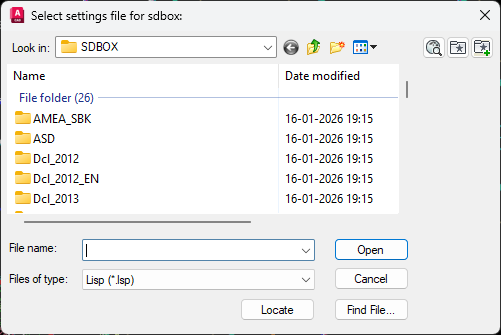
Settings import dialog - selecting the settings file
Steps
- Run the command zzInsPropScadD.
- Select the file containing the settings exported with zzSavePropScadD.
- Settings are loaded and applied to your current SDTOPO installation.
- All commands will now use the imported settings.
Description
Select the file that contains the settings exported with the zzSavePropScadD command from any computer and any version of AutoCAD.
You can restore the original program settings or run this command as many times as you want.
Notes:
Importing settings will overwrite your current configuration. Consider exporting your current settings first if you want to preserve them.
Command Usage:
Use zzInsPropScadD to:
- Restore settings from a backup
- Apply settings from another computer
- Standardize settings across multiple workstations
- Test different configuration sets
Tips:
Create different settings files for different project types (e.g., one for topographic surveys, one for building plans) and load them as needed with zzInsPropScadD.
Plot Styles (Pen Settings) ZPLOTSTYLES
Predefined *.ctb files for printing at various scales with optimized line weights and colors based on default suggested object colors.
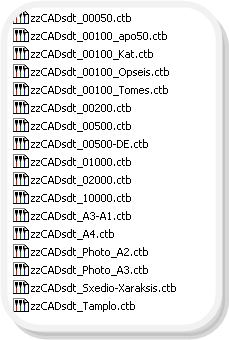
Plot styles folder structure
Description
When loading the Program, a folder (\\SDBOX\zzPlotStyles) is also installed with predefined *.ctb files for printing at various scales.
You can copy the *.ctb files to the Plot Styles folder of AutoCAD.
The settings they contain concern line weight and print color and have been defined based on the default suggested colors of objects.
Special care has been taken so that objects print clearly and differentiated for each print scale.
Note:
During program installation or update, you must copy the pen settings from the SDBOX folder to the AutoCAD PlotStyles folder with the ZPLOTSTYLES command.
Available Plot Style Files
The *.ctb files provided with the Program are the following:
- zzCADsdt_00050: Scale 1:50
- zzCADsdt_00100_apo50: For drawings composed for scale 1:50 that need to be printed at 1:100
- zzCADsdt_00100_Kat: Floor plans for Scale 1:100
- zzCADsdt_00100_Opseis: Elevations for Scale 1:100
- zzCADsdt_00100_Tomes: Sections for Scale 1:100
- zzCADsdt_00200: Scale 1:200
- zzCADsdt_00500: Scale 1:500
- zzCADsdt_00500-DE: Scale 1:500 with emphasis on text detail
- zzCADsdt_01000: Scale 1:1000
- zzCADsdt_02000: Scale 1:2000
- zzCADsdt_10000: Scale 1:10000
- zzCADsdt_A3-A1: For Scaled to Fit printing for paper sizes A3 to A1
- zzCADsdt_A4: For Scaled to Fit printing for paper size A4
- zzCADsdt_Photo_A2: For Scaled to Fit printing for photo drawings on paper size A2
- zzCADsdt_Photo_A3: For Scaled to Fit printing for photo drawings on paper size A3
- zzCADsdt_Sxedio-Xaraksis: Layout and implementation study drawings
- zzCADsdt_Tamplo: Printing drawings in reduced size (e.g., for wall mounting)
Plot Style Lineweights (Visual)
Detailed Color Table
View detailed all colors and line weights here.
Download detailed CTB configuration spreadsheet
Notes:
There are also other pen settings that print in color; the remaining colors generally print with thin black line. Colors 250 through 254 print in their own colors.
Command Usage:
Use the appropriate plot style for each drawing scale to ensure optimal print quality. The ZPLOTSTYLES command helps install these styles to your AutoCAD Plot Styles folder.
Tips:
Watch the tutorial video: Print to PDF!
Uninstall SDTOPO unsdtopo
Uninstalls the SDBOX program. Removes Menus, fonts, Hatches, Linetypes, etc.
Description
This command performs a complete uninstallation of the SDTOPO add-on from your AutoCAD environment.
It removes:
- SDTOPO Menus from AutoCAD interface
- Custom fonts installed by SDTOPO
- Hatch patterns specific to SDTOPO
- Linetype definitions added by the program
- Toolbars and ribbons created by SDTOPO
- Support files in the SDBOX directory
Note:
This command is used before installing a new version of the program. It ensures a clean installation by removing all previous SDTOPO components.
Warning:
Running unsdtopo will remove all SDTOPO components. Make sure to:
- Export your settings with zzSavePropScadD if you want to preserve them
- Backup any custom files in the SDBOX directory
- Close all AutoCAD sessions before uninstalling
Command Usage:
Use unsdtopo when:
- Preparing to install a new SDTOPO version
- Troubleshooting installation problems
- Completely removing SDTOPO from your system
- Before transferring your license to another computer
Tips:
After uninstalling with unsdtopo, you can perform a fresh installation. Use zzInsPropScadD to restore your saved settings after the new installation.