📐 SDBOX Setting-Out Plan
SDBOX Setting-Out Plan – This tool is not just a collection of CAD commands. It is a structured guide for preparing a drawing for setting out on site. Its purpose is to help the user follow a clear sequence of steps, avoid omissions, reduce errors, and produce clean, reliable information for field work.
When preparing a setting-out plan, it is not enough to simply have a DWG file. The drawing must first be checked, cleaned, organized, scaled, and prepared so that it can be used safely and efficiently on site.
Third-party drawings may need to be checked before they are used as Xrefs. The existing survey plan must be simplified and converted into a clean base drawing. Survey stations, property vertices, building corners, boundaries, reference points, and check points must be reviewed. Finally, the actual set-out points must be exported, checked, displayed clearly, and printed in a form that can be used by the survey crew or construction team.
If one of these steps is skipped, the problem may only become visible later on site, where corrections are more difficult, more time-consuming, and sometimes costly. The Setting-Out Plan tool is organized into five tabs that follow the natural order of preparing a drawing for construction setting out:
This tab is used to prepare external DWG files received from architects, engineers, consultants, or other collaborators.
This tab is used to prepare the existing survey drawing, which will become the base drawing for the setting-out plan.
This tab is used to organize levels, survey stations, boundaries, building corners, building limit lines, and check points.
This tab is used to import, export, review, and manage the actual points that will be used for setting out on site.
This tab is used to prepare the final drawing for printing or PDF output.
📄 1. Third-party drawings
Prepare external DWG files for use as Xrefs – check, clean, organize
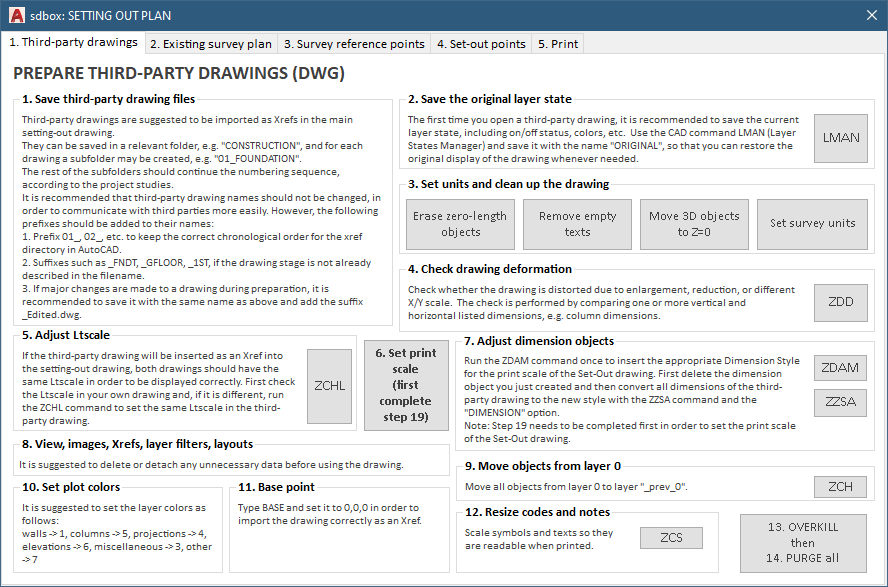
The first step is to save and organize the third-party drawings properly.
It is recommended to save these files in a dedicated folder, for example a folder named CONSTRUCTION. If several drawings are involved, each drawing may be placed in a subfolder, such as 01_FOUNDATION, 02_GROUND_FLOOR, and so on.
The original file names should not be changed without a clear reason. If more information is needed, it is better to add prefixes or suffixes to the original names.
Prefixes such as 01_, 02_, and 03_ can be used to keep the correct chronological or construction order. Suffixes such as _FNDT, _GFLOOR, or _1ST can be added if the drawing stage or floor is not already clear.
If major changes are made during preparation, save the edited drawing with the same organized name and add a suffix such as _Edited.dwg.
The purpose of this step is traceability. At any time, the user should be able to understand where each file came from, what it represents, and which version was used in the final setting-out plan.
Before modifying a third-party drawing, it is recommended to save the original layer state.
Using the LMAN command, the current layer state can be saved, including on/off status, colors, and other layer display settings. A suitable name for this layer state is ORIGINAL.
This gives the user a safe return point. If layers are turned off, colors are changed, or the drawing is simplified, the original display can still be restored whenever needed.
This is especially useful when external drawings are complex and contain information that may need to be checked again later.
First, zero-length objects can be erased. These objects are often created by poor exports, old edits, or incorrect drawing operations.
Next, empty text objects can be removed. Empty texts may not be visible on screen, but they still exist in the drawing and may interfere with editing or exporting.
The next option is to move 3D objects to Z=0. This is important when a drawing is intended to be used as a 2D background. Unwanted Z values can create problems when measuring, snapping, or comparing points.
Finally, the Set survey units command helps ensure that the drawing uses the correct survey units. This is critical: if the drawing units are wrong, distances, scale, and Xref insertion may all be affected.
This step checks whether the drawing has been distorted.
A drawing may have been scaled incorrectly, enlarged, reduced, or stretched differently in X and Y directions. This can happen because of incorrect units, incorrect import procedures, or previous editing by third parties.
The check should be performed by comparing one or more known horizontal and vertical dimensions (e.g., column dimensions).
If the drawing is distorted, it should not be used directly for setting out. Even a small scale error can become a serious construction error on site.
The line-type scale affects the display of dashed lines, centerlines, projection lines.
If the third-party drawing will be inserted as an Xref, its line types should display correctly after insertion. Check the Ltscale of your main drawing first. If the third-party drawing uses a different Ltscale, the ZCHL command can be used to set the same value.
This helps ensure that the drawing is readable and that the final print looks correct.
This step reminds the user to set the print scale, but only after completing step 19.
Many elements (dimensions, texts, symbols, point codes) depend on the final print scale. A drawing may look acceptable on screen, but if the print scale is not correctly defined, it may become unreadable on paper.
This section is used to prepare dimension objects.
Run ZDAM to insert the appropriate Dimension Style for the print scale of the setting-out drawing. The created dimension can then be deleted (main purpose is to load the proper style).
After that, convert dimensions of the third-party drawing to the new style using ZZSA and the DIMENSION option.
This is important because dimensions must be readable in the final printed plan. If dimensions remain in the wrong style or size, the drawing may be technically correct but difficult to use on site.
General cleanup reminder: unnecessary images, Xrefs, layer filters, layouts, and other unused data should be deleted or detached before using the drawing.
A clean drawing reduces the risk of confusion and technical problems.
Move all objects from layer 0 to another layer, such as _prev_0.
Layer 0 has special behavior in CAD, especially when drawings are used as blocks or Xrefs. It is not good practice to keep many drawing objects on layer 0 when the file will be used as a controlled background.
Moving objects away from layer 0 makes the drawing more predictable and easier to manage.
Suggested organization:
- walls color 1
- columns color 5
- projections color 4
- elevations color 6
- miscellaneous elements color 3
- other elements color 7.
All colors are connected to lineweights through SDBOX CTB files; correct color organization helps produce a clear final print.
The base point should be set to 0,0,0 (BASE).
This ensures that the drawing is inserted correctly as an Xref. If the base point is wrong, the Xref may appear in an unexpected position.
Symbols and texts must be readable when printed.
The ZCS command is used to scale symbols and text objects so that they are clear in the final output.
This is important because the drawing is not only meant to be correct on screen. It must also be readable on paper or in PDF form.
Final cleanup: use OVERKILL to remove duplicate or overlapping objects, then PURGE all to remove unused definitions, blocks, layers, styles. This makes the drawing lighter, cleaner, and safer to use as an Xref.
🗺️ 2. Existing survey plan
Simplify and organize the survey drawing as a reliable base for setting out
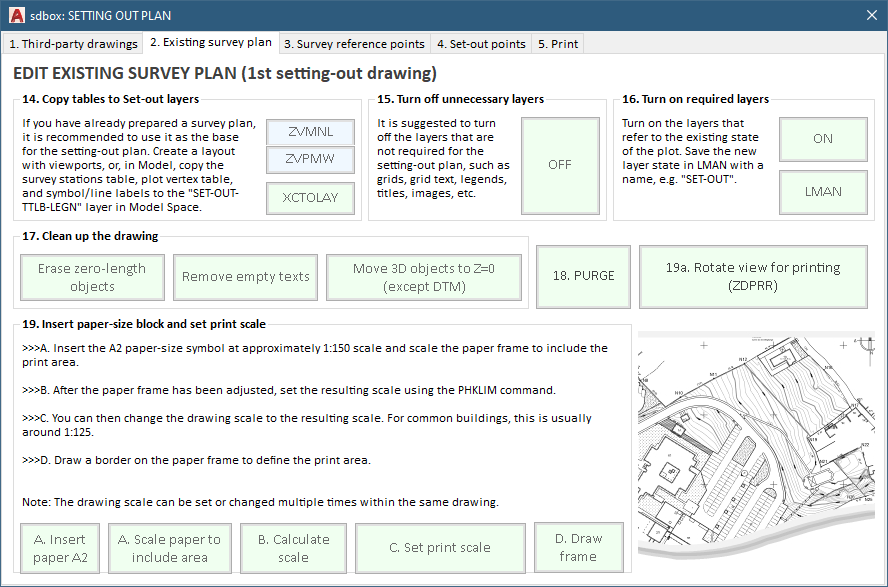
If a survey plan has already been prepared, use it as the base for the setting-out plan.
Create layouts with viewports or copy the survey stations table, plot vertex table, and related symbols/line labels into the SET-OUT-TTLB-LEGN layer in Model Space.
This helps place important reference information into layers specifically intended for the setting-out plan.
Turn off layers not required for the setting-out plan: grids, grid text, legends, titles, images, and other elements that belong to the full survey drawing but are not needed for construction setting out.
A setting-out plan should show only information that is useful on site.
Turn on the layers that describe the existing state of the plot.
Save the new layer state in LMAN with a name such as SET-OUT.
This allows the user to restore the correct setting-out display at any time.
Similar to tab 1: erase zero-length objects, remove empty texts, move 3D objects to Z=0.
Important exception: the DTM should not be moved to Z=0, because it is a 3D surface and may contain useful elevation information.
The PURGE command removes unused data from the drawing, keeping the file clean and avoiding unnecessary complexity before the final setting-out drawing is prepared.
This command allows temporary rotation of the view for printing.
It does not rotate the drawing geometry, only the view, so that the project area can fit better on the paper.
Useful when site orientation does not fit well in the default view.
One of the most important steps:
1) Insert the A2 paper-size symbol at approx 1:150 scale.
2) Scale the paper frame to include the print area.
3) Calculate the resulting scale.
4) Set the print scale using PHKLIM.
5) Draw a border on the paper frame to define the print area.
The print scale affects texts, symbols, dimensions, blocks, and overall readability. The drawing scale can be set or changed multiple times within the same drawing.
📍 3. Survey reference points
Levels, stations, boundaries, building corners, limit lines, check points – building a reliable reference framework
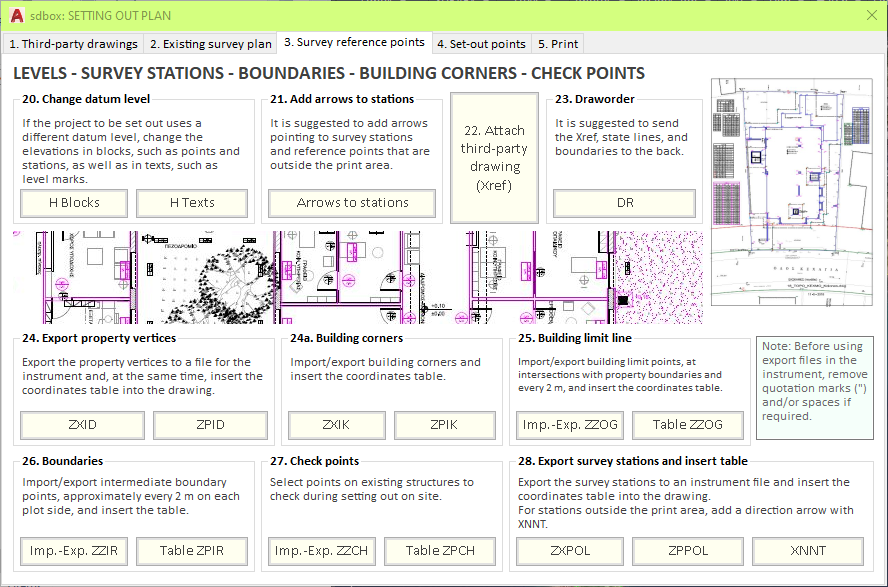
If the project uses a different datum level from the original survey drawing, elevations must be adjusted.
This affects elevation values stored in blocks (survey points, stations) and texts (level marks).
Critical step: incorrect vertical reference can lead to serious construction errors even if horizontal coordinates are correct.
Survey stations or reference points may sometimes be outside the print area.
Add direction arrows pointing toward those stations. This improves practical usability of the plan on site.
Attach the prepared third-party drawing as an Xref.
Keeps external drawing separate from the main drawing while allowing display and use as a background.
Reduces risk of mixing external data with your own setting-out information.
The Draworder command is used to send the Xref, state lines, and boundaries to the back.
Main setting-out information (point codes, symbols, annotations) must appear clearly above the background. If background lines are in front, the final print becomes difficult to read.
Exports property vertices to a file for the instrument and inserts the coordinates table into the drawing.
Ensures property corners can be used in the field and that the same information is visible in the drawing.
Imports and exports building corners and inserts the coordinates table.
Building corners are critical setting-out elements; their correct position is essential for building placement within the plot.
Imports and exports building limit points at intersections with property boundaries and at regular intervals (e.g., every 2 meters).
The coordinates table is inserted into the drawing. Useful when construction must be checked against the permitted building limit line.
Imports and exports intermediate boundary points, approximately every 2 meters on each side of the plot, and inserts the corresponding table.
Useful when boundary corners alone are not enough; long or irregular boundaries require intermediate points for better control on site.
Check points are selected on existing structures or known features.
They verify the setting-out process on site.
They help confirm that the drawing, instrument, and actual site conditions agree with each other.
Exports survey stations to an instrument file and inserts the coordinates table into the drawing.
If stations are outside the print area, add a direction arrow using XNNT.
This completes the reference framework of the setting-out plan.
🎯 4. Set-out points
Core of the workflow: excavation corners, concrete walls, columns, other structural elements, dimensions, review tools
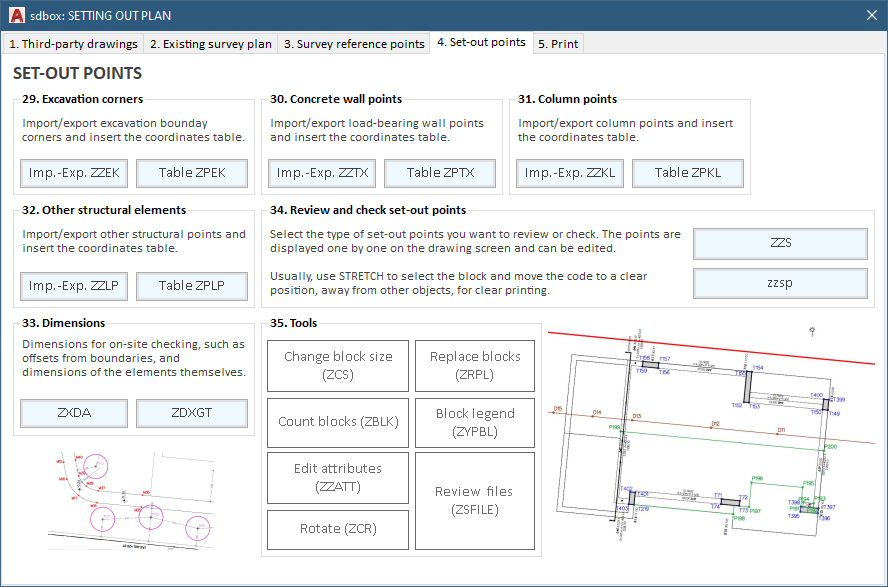
Imports and exports excavation boundary corners and inserts the coordinates table.
Excavation points are often among the first points needed on site. They must be clear, reliable, and separated from other structural points.
Imports and exports load-bearing wall points and inserts the coordinates table.
These points are important because concrete walls and structural walls directly define the geometry of the building.
Imports and exports column points and inserts the coordinates table.
Column points are among the most important construction setting-out points; keeping them in a separate category makes them easier to check and manage.
Not all construction elements are excavation corners, walls, or columns.
This section allows import/export of additional structural points and inserts the corresponding coordinates table, keeping the workflow flexible.
Used for on-site checking dimensions: offsets from boundaries, distances from existing elements, or dimensions of construction elements themselves.
These dimensions do not replace coordinates, but allow quick visual and practical checks without requiring every verification through coordinate calculations.
One of the most important parts. The user selects the type of set-out points to review or check.
Points are displayed one by one and can be edited. Usually the STRETCH command is used to select the block and move the code to a clear position, away from other objects, so that it prints clearly.
A good setting-out plan must present codes clearly – confusion on site is avoided.
Supporting tools for managing set-out blocks and files: changing block size, replacing blocks, counting blocks, creating/checking block legend, editing attributes, reviewing files, rotating blocks or text.
Changing block size helps match the final print scale; replacing blocks updates symbols; counting blocks verifies quantities; editing attributes allows correction of point information.
Tab 4 is where preparation becomes actual field information.
🖨️ 5. Print
Final output: printing or creating a PDF – clear layout, correct scale, visible point codes
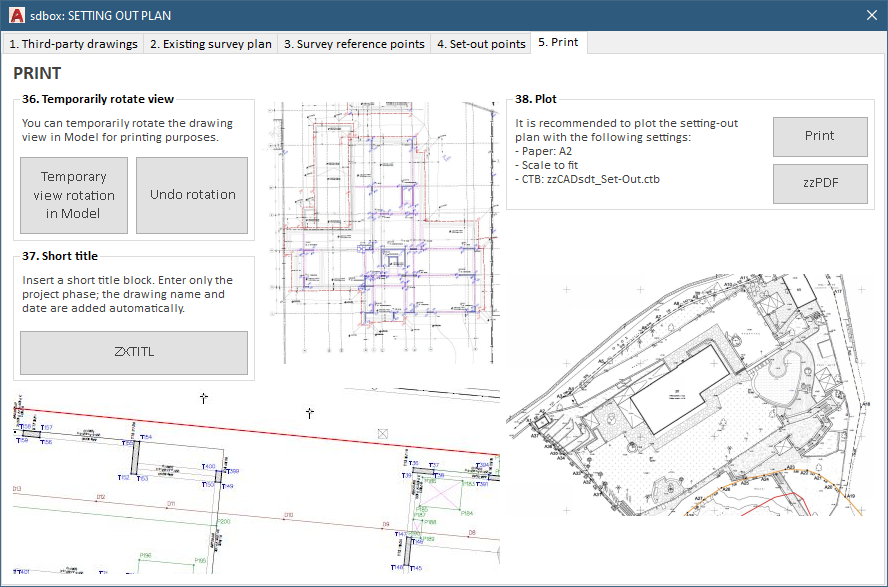
Allows temporary rotation of the drawing view in Model for printing purposes.
Useful when site orientation does not fit well on paper.
The geometry itself is not rotated – only the view – preserving real coordinates while improving printed layout.
Undo rotation restores the previous view.
Inserts a short title block.
The user enters only the project phase; the drawing name and date are added automatically.
This standardizes final output and gives each print a clear identity without manual re-entry of details.
Final step: plotting or creating a PDF.
Recommended settings: paper size A2, scale to fit, and the CTB file zzCADsdt_Set-Out.ctb.
The CTB file controls lineweights and print appearance.
The Print button is used for plotting, while zzPDF creates a PDF output.
This final tab turns the prepared drawing into a practical document that can be used on site.
📌 Closing – The SDBOX Setting-Out Plan workflow
The SDBOX Setting-Out Plan workflow is designed to organize a complex technical process into clear, repeatable steps. It starts with the preparation of third-party drawings. It continues with the organization of the existing survey plan. It then checks and prepares the survey reference framework, including levels, stations, boundaries, building corners, and check points. Next, it creates and reviews the actual set-out points. Finally, it prepares the drawing for print or PDF output.
The purpose of this workflow is to reduce mistakes, improve drawing clarity, and make the setting-out process more reliable. On site, preparation is critical. A clean drawing, correct points, reliable survey stations, proper scale, readable codes, and a clear printed plan can save time and prevent errors.
This is the purpose of the Setting-Out Plan tool in SDBOX: to transform setting out from a series of separate CAD actions into an organized, controlled, and repeatable workflow. It helps the user prepare the drawing carefully, check the important information, export the necessary data, and deliver a clear plan for construction work on site.