Building Sections and Elevations Tools
SDBox Design Software - Command guide for automatic creation of building sections and elevations from plan view in CAD drawings
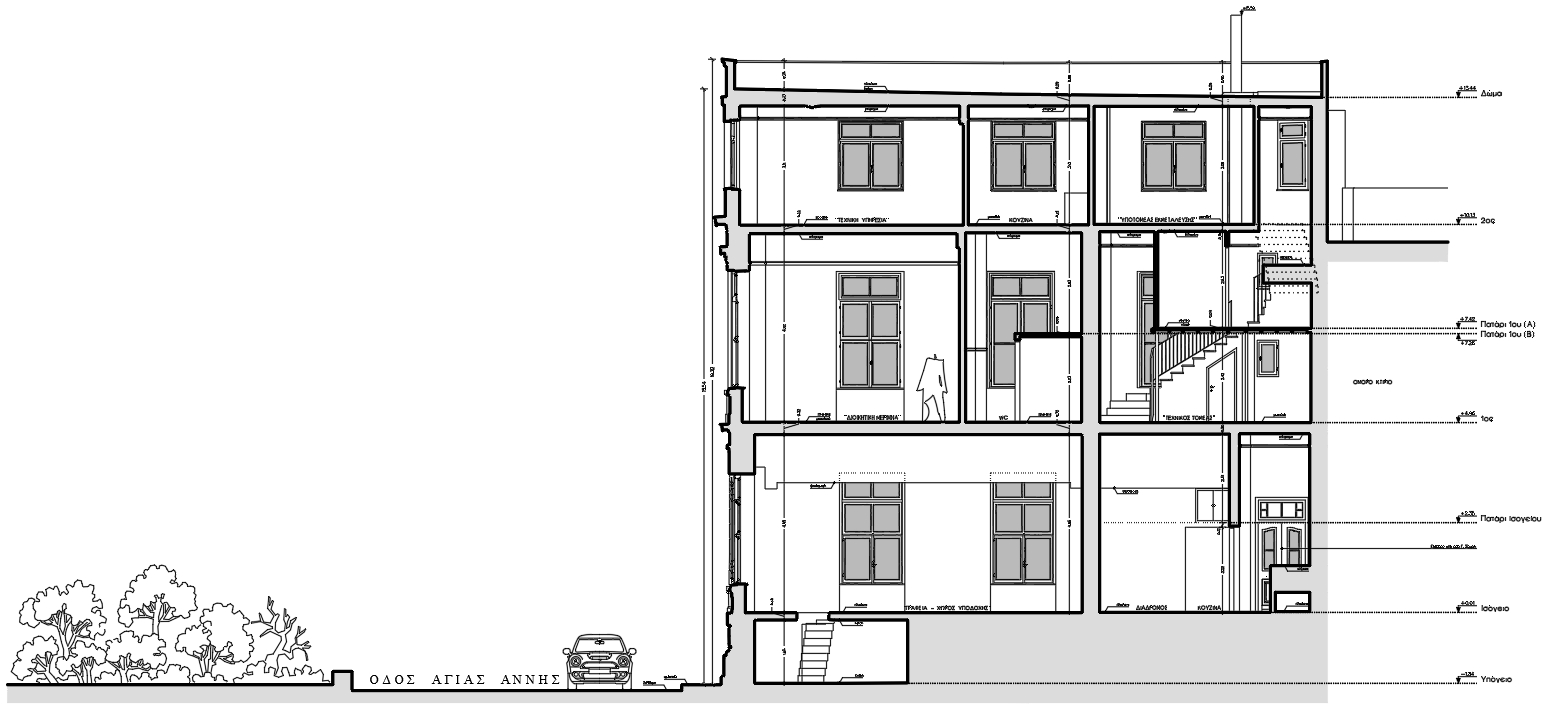 Section
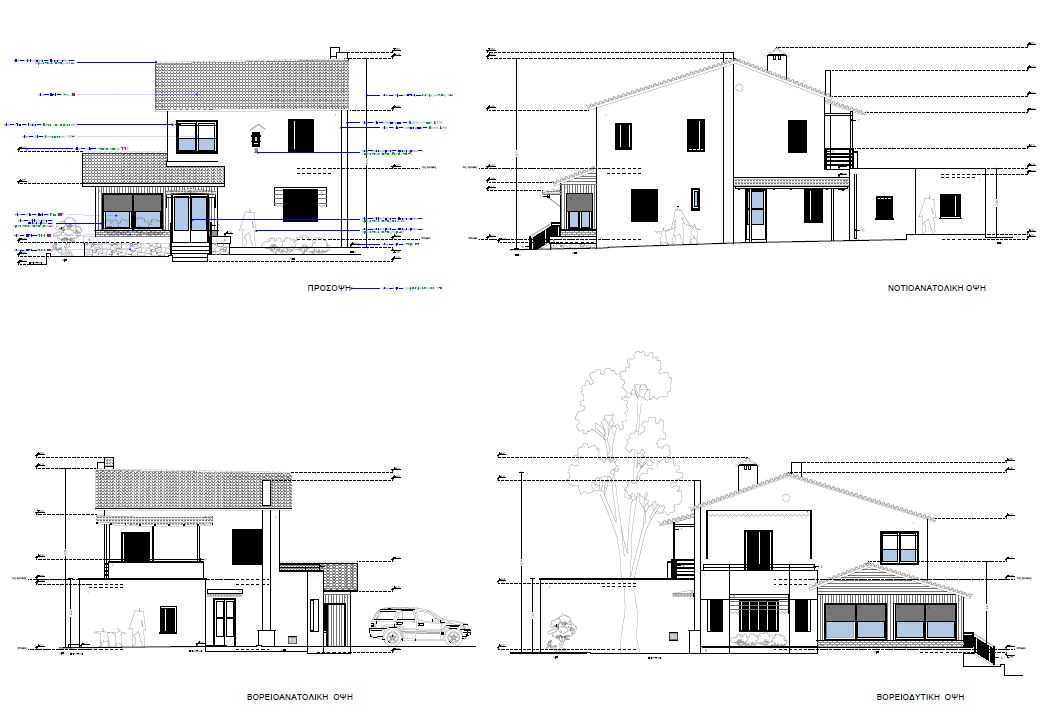 Elevation
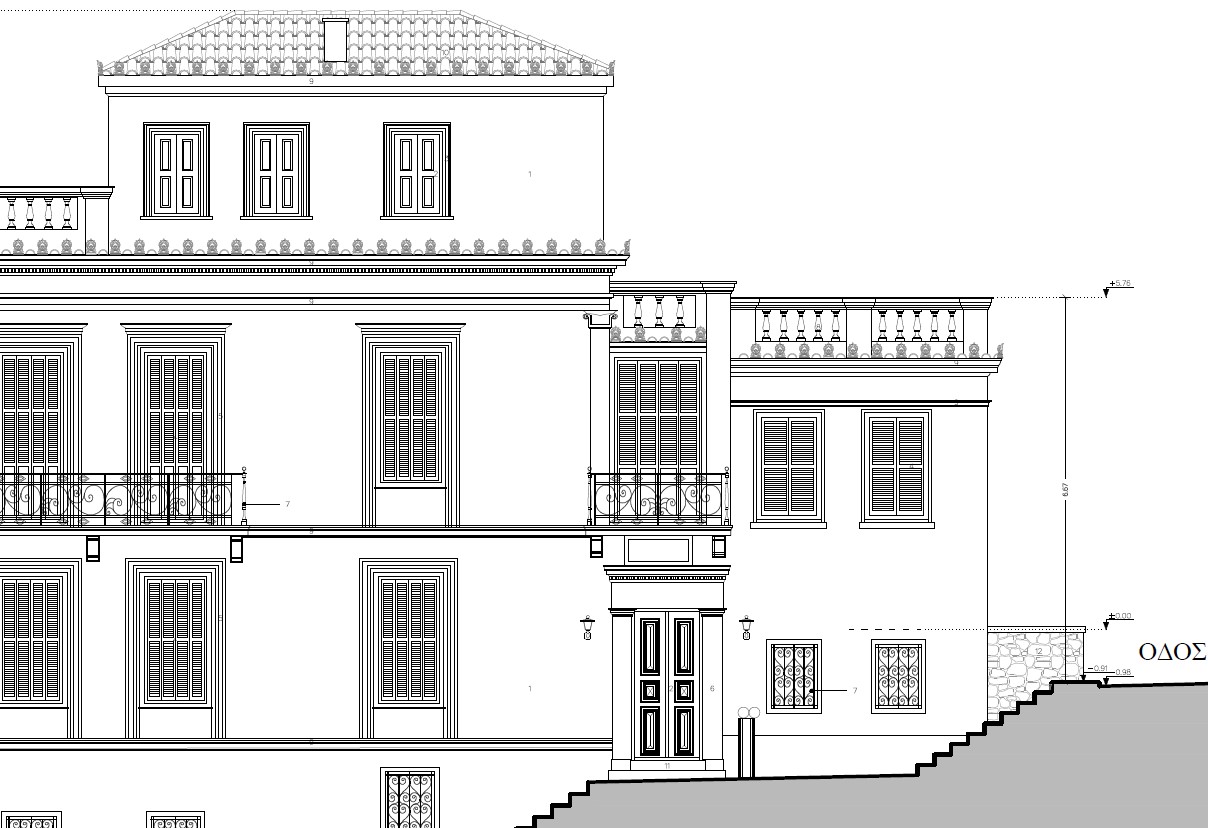 Elevation
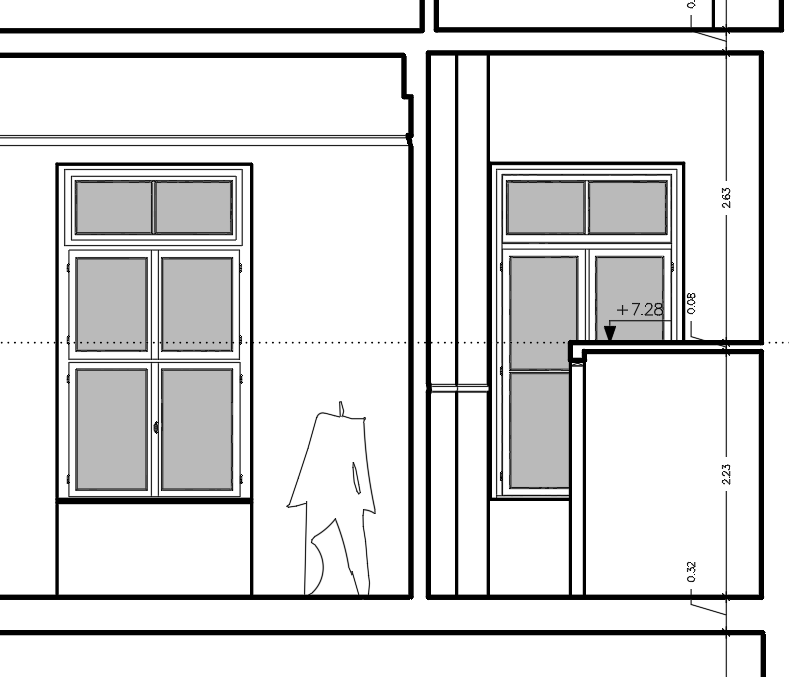 Section
Line with same Y at both ends GGY
Draws horizontal lines at a specified Y coordinate.
You can type or select the desired Y coordinate, then select points on screen to draw lines with X coordinate of each selected point and Y the specified value.
Steps
- Enter or select the desired Y coordinate.
- Select points on screen where you want horizontal lines.
- Lines are drawn automatically at the specified Y coordinate.
Write or select with a point the Y: [E=Options] <-20.5014> :
You can type the desired Y coordinate or type E for calculation options. After selecting the Y, you select points on screen and lines are drawn with X coordinate of each point and Y the specified value.
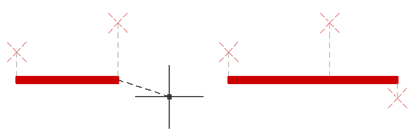
Example of horizontal lines drawn with GGY command
Notes:
The command is very useful when raising a Section or Elevation from plan view. GGX works similarly but for X coordinate (vertical lines).
Command Usage:
Use this command when you need to draw multiple horizontal lines at the same elevation, such as floor levels, foundation lines, or roof lines in sections and elevations.
Tips:
Use the E option for calculations or operations to determine the Y coordinate from existing geometry or mathematical operations.
Line with same X at both ends GGX
Draws vertical lines at a specified X coordinate.
The equivalent command for X coordinate. You specify the X value, then select points to draw vertical lines at that X position.
Works exactly like GGY but for vertical lines. Very useful for aligning elements in sections or creating grid lines.
Tips:
GGY and GGX are complementary commands for creating the basic grid structure of sections and elevations from plan view coordinates.
Line at Y=0.00 GRY0
Draws a horizontal line at Y=0.00 (zero elevation).
Specialized version of GGY that automatically sets Y=0.00 for drawing ground level or reference lines.

GRY0 command draws line at zero elevation
Command Usage:
Use GRY0 when you need to quickly draw the ground level line or any reference line at zero elevation in your section or elevation drawing.
Raise line to Y GG1
Draws vertical lines from selected points to a specified Y coordinate.
Select the desired Y coordinate, then select points on screen to draw vertical lines from those points up to the specified Y value.
Steps
- Enter or select the target Y coordinate.
- Select points on screen from which to draw vertical lines.
- Vertical lines are drawn from each point to the specified Y.
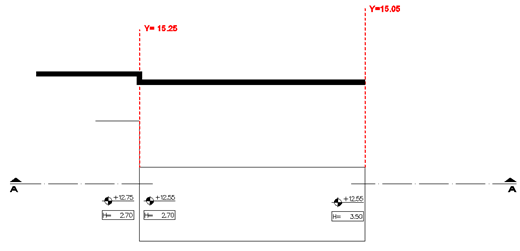
Vertical lines drawn with GG1 command
Write or select with a point the Y: [E=Options] <-20.5014> :
You can type the desired Y or type E for options. After selecting Y, you select points on screen and vertical lines are drawn from those points to the specified Y.
Command Usage:
Perfect for creating vertical elements in sections like columns, walls, or for projecting plan elements to their correct height in elevations.
Floor Slabs GRPO
Automatically draws floor slabs at specified elevations.
Creates floor slab lines at a given Y coordinate. You specify the layer for slabs, then the elevation, and draw slabs by selecting points.
Steps
- Specify the layer for 'Floor Slabs'.
- Enter or select the Y coordinate for slab elevation.
- Select start and end points for each slab.
- Slabs are drawn at the specified elevation.
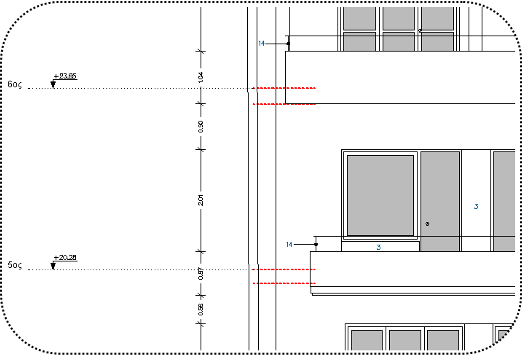
Floor slabs created with GRPO command
Enter Layer for 'Floor Slabs':
Write or select with a point the Y: [E=Options] <-20.5014> :
Note:
After drawing the first slab, for subsequent slabs, after selecting Y, define as start and end points the points of the first slab so all slabs are the same length and aligned.
Command Usage:
Use GRPO to quickly create all floor slabs in a building section at their correct elevations. Essential for multi-story building sections.
Tips:
For consistent results, always use the same start and end points for all slabs on the same level. This ensures perfect alignment and equal lengths.
Levels/Elevations TST
Inserts level symbols with elevation text at selected points.
Inserts a level symbol at the point you select, with text showing the Y coordinate of that point. You can configure decimals, units, offset values, multipliers, etc.
Steps
- Specify the layer for 'Levels'.
- Configure options if needed (press O for Options).
- Select points where you want level symbols.
- Level symbols with elevation text are inserted automatically.
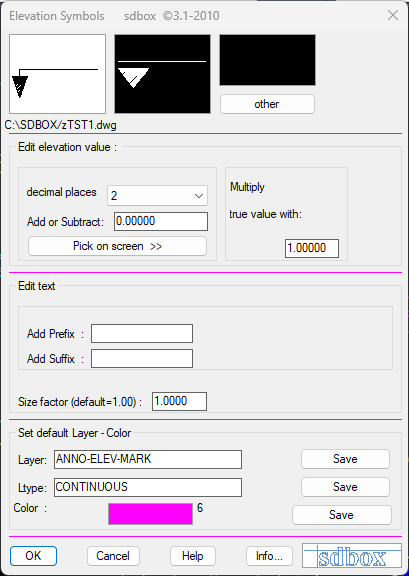
Levels configuration options dialog
Enter the LAYER for 'Levels':
Select 1st point for level insertion or [O=Options, Enter=Exit]:
You can press O for Options to configure decimal places, units, prefix/suffix, offset values, multiplier, etc.
Select 2nd point for level insertion <R=Reverse direction, U=Undo, ENTER=Exit>:
R=Reverse direction: Changes the symbol orientation by a quarter turn around the insertion point.
U=Undo: Removes the last inserted symbol.
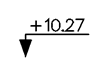
Level symbol examples
Command Usage:
Use TST to mark all important elevations in sections and elevations: floor levels, ceiling heights, window sills, roof levels, etc.
Tips:
Configure the options once according to your project standards, then the command will use these settings for all subsequent level insertions.
Levels with line (outside) TSTGR
Inserts level symbols with dashed leader lines to the outside of the drawing area.
For each point you select, a level symbol is inserted at a predetermined distance right or left of the drawing area with a dashed line connecting to the point.
Steps
- Specify the layer for 'Levels with line (outside)'.
- Define the main side of the drawing (leftmost or rightmost).
- Define the annotation side for levels.
- Select points for level insertion.
- Level symbols with leader lines are created automatically.

Levels with leader lines outside drawing area
Enter Layer for 'Levels with line (outside)':
Select the leftmost or rightmost Main Side of the Drawing:
Select the side for Level Annotation:
The command works based on settings you have defined in the TST options tab. You can choose whether leader lines stop at a default distance or at a point you specify.
Command Usage:
Use TSTGR when you want clean, organized level annotations outside the main drawing area, connected to points with dashed leader lines. Common in professional architectural sections.
Check Levels CCTST
Checks levels in a selected area for incorrect elevation text.
Select an area of the drawing and levels with incorrect elevation text are highlighted with a red circle. Useful if a level has been moved without updating its text value.
Steps
- Select area containing levels to check.
- The command analyzes all levels in the area.
- Levels with incorrect text (not matching actual Y coordinate) are highlighted with red circles.
- Report shows how many levels were checked and how many errors found.
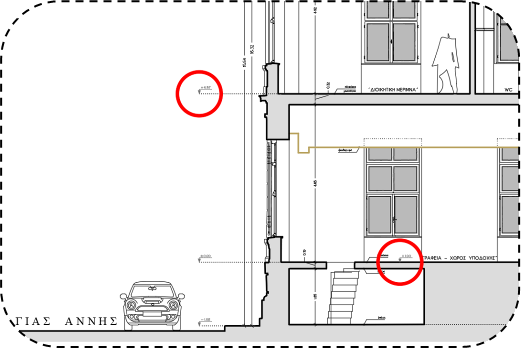
Level checking with error highlighting
Select area for Level Check of Section or Elevation: Select objects:
****Checked 5 Levels and => there are 3 errors in circle.
Note:
It is recommended to run this command frequently in your drawing and definitely before final delivery to ensure all level annotations are correct.
Command Usage:
Use CCTST as a quality control tool before ploting or delivering drawings. Ensures all elevation annotations match the actual geometry.
Text from Xref TTXX
Copies text from an Xref and places it in the current drawing at a specified elevation.
Select text from an Xref (external reference) and it is rewritten in the current drawing at the same X coordinate but at the elevation you specify.
Steps
- Specify the layer for 'Text from Xref'.
- Select text in the Xref to transfer.
- Specify the elevation where text should be placed.
- Text is copied with same X coordinate but at new Y elevation.
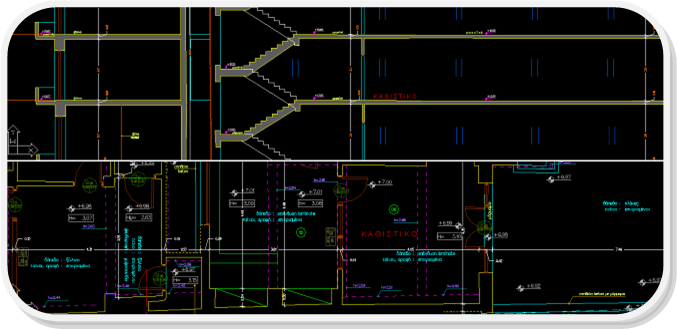
Copying text from Xref to current drawing
Enter Layer for 'Text from Xref':
Select 1st Text Letter in XREF to transfer to Level:
Select or write the LEVEL where Text will be written? :
From the Xref you can select text or Attribute of a Block. The command is designed with the logic that you have inserted an Xref of the Plan to raise a Section or Elevation. Then you can transfer texts from the Plan to the Section or Elevation by selecting at which level they should be annotated.
Tips:
Select the first letter of the text for proper alignment between the two drawings. You can continue selecting more texts after placing the first one.
Change Xref XDDA
Changes the Xref used by commands like TTXX.
Allows you to select which Xref file commands like TTXX will read from during execution.
You can run this command as many times as you want in the same drawing and select different Xrefs. This is useful when working with multiple plan files or different floor plans.
Command Usage:
Use XDDA when you need to switch between different plan Xrefs while creating multiple sections or elevations from different parts of a building.
Window Opening OPSPAR
Automatically draws window openings in elevations.
Opens a tab where you have options for repetitive automatic drawing of windows in elevation by selecting only the center of the opening or 2 points on screen.
Steps
- Specify the layer for 'Window Openings'.
- Configure window type in the options dialog.
- Select points inside wall areas to insert windows.
- Windows are drawn automatically according to settings.
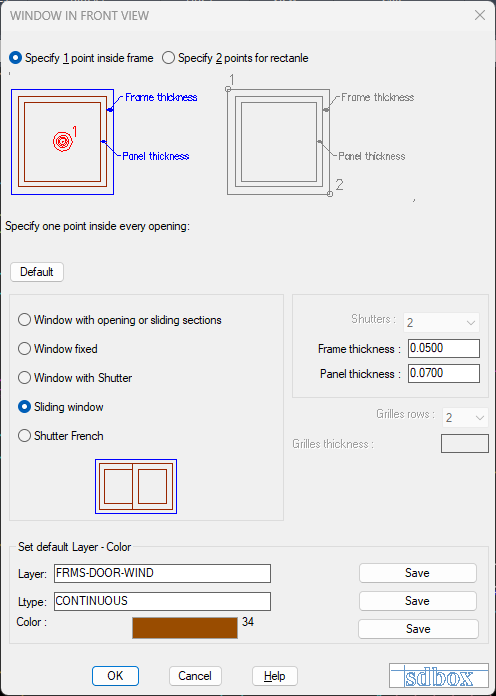
Window opening configuration dialog
Enter the LAYER for 'Window Openings':
Select point inside closed area... :
Select points successively in closed areas (or rectangle with 2 points) on screen and windows are drawn automatically according to the settings you made in the dialog.
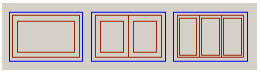
Glass with openable/sliding parts
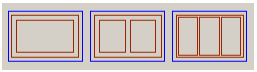
Glass with non-openable parts
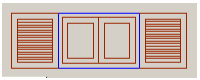
Glass with Frame
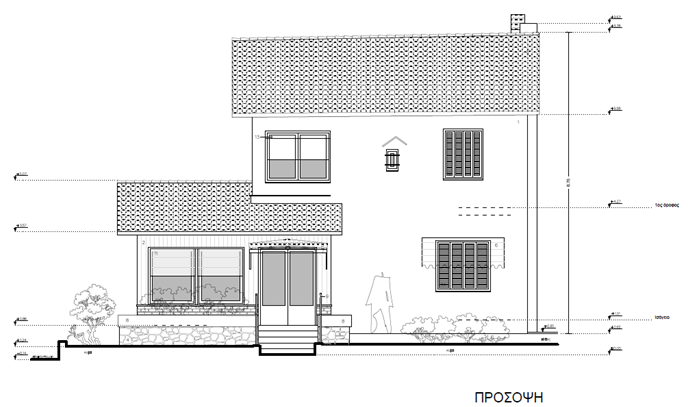
Automatic window placement in elevation
Command Usage:
Use OPSPAR to quickly place multiple windows in building elevations. Configure the window type once, then simply click inside wall areas to insert windows automatically.
Tips:
For best results, make sure wall areas are properly closed polylines. The command detects closed areas and centers windows automatically.