Import Views from Another Drawing
SDBox Design Software - Command guide for importing views between CAD drawings
Import Views ZVIM
Import into the current drawing Views that you have created in another drawing using the ZVM, ZVBL and ZVK commands.
Views from the selected source drawing are imported into your current drawing, and simultaneously, the corresponding command files are updated.
This is particularly useful when you want to transfer predefined view configurations, sections, or detail views between related drawings, ensuring consistency across projects.
Command Purpose
The ZVIM command allows CAD users to efficiently reuse view configurations across multiple drawing files. This saves time and ensures standardized view setups for plans, sections, elevations, and details.
Compatibility Note:
The ZVIM command works with views created by the following SDBox commands: ZVM (Drawing Views), ZVBL (View Blocks), and ZVK (Section Views). It maintains the view properties, scales, and layer states.
File Selection
Select the drawing file that contains the Views you want to import into your current drawing.
When you run the ZVIM command, a file selection dialog appears where you can browse for the source DWG file containing the views you wish to import.
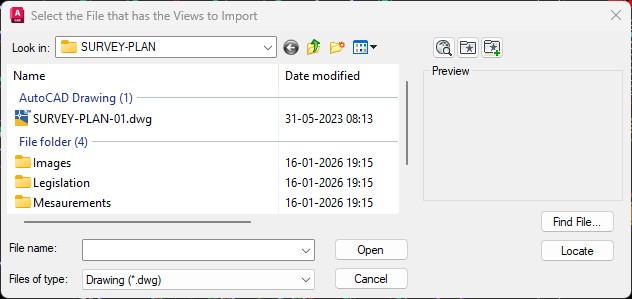
Selecting the source drawing file containing views
Important:
If the file you select is currently open in AutoCAD, you will be notified that you need to close it and run the command again. This ensures data integrity during the import process.
After selecting the file, the command analyzes it to identify all available views that can be imported.
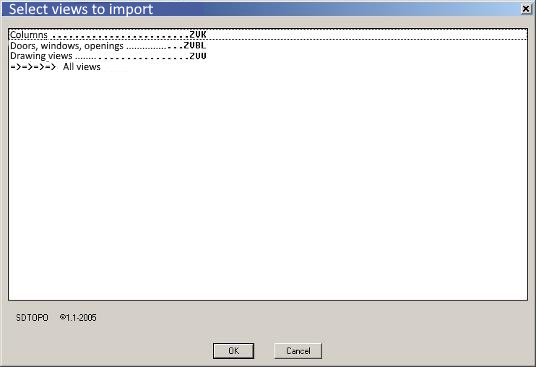
Analysis of the selected drawing file
^ Back to topView Types Selection
Choose which type of Views you want to import into your drawing.
The command presents you with options to select specific categories of views for import:
Selecting view types for import
Available View Categories:
Column Sections ZVK:
These are views created during the ZVK command for dimensioning columns, walls, beams, etc. They allow you to quickly navigate to specific structural elements with automatic zoom.
Column section views (ZVK category)
Doors, Windows, Openings ZKKP:
Views created during the ZKKP command for dimensioning and numbering openings. These views help you locate specific openings in the drawing by name.
Door and window views (ZKKP category)
Drawing Views ZVM:
Views saved using the ZVM command where you navigate the drawing with the mouse and save various display areas as named views for quick recall with the ZVV command.
All Views:
Imports all views from the source drawing, including those not related to the above commands but created in the selected drawing.
Selection Tip:
For typical workflows, selecting specific view categories (like ZVK for structural elements or ZKKP for openings) helps keep your drawing organized and avoids cluttering with unnecessary views.
Import Process
The import process updates both the drawing and the corresponding view files.
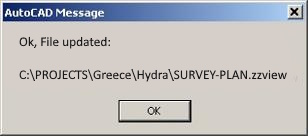
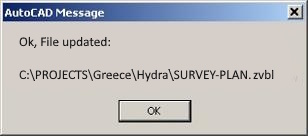
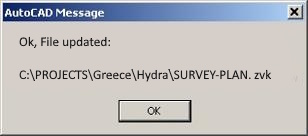
After selecting the view types, the command imports the views and updates the corresponding command files. For example, if your drawing is named A_RTW_DD.dwg:
File update notifications during import
File Updates:
The command updates the following files associated with your drawing:
• ZVK view files for column sections
• ZKKP view files for openings
• ZVM view files for drawing views
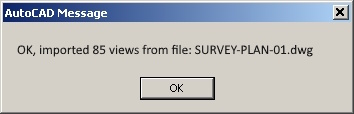
You are then notified about the number of views imported into your drawing:
Typical Usage:
This command is commonly used when:
1. Starting a new drawing based on an existing template with predefined views
2. Collaborating with team members who use standardized view setups
3. Maintaining consistency across multiple drawing sheets in a project
Result & Confirmation
After import completion, a tab opens showing all imported views.
The final step displays a comprehensive list of all views imported into your drawing, allowing you to verify the imported content.
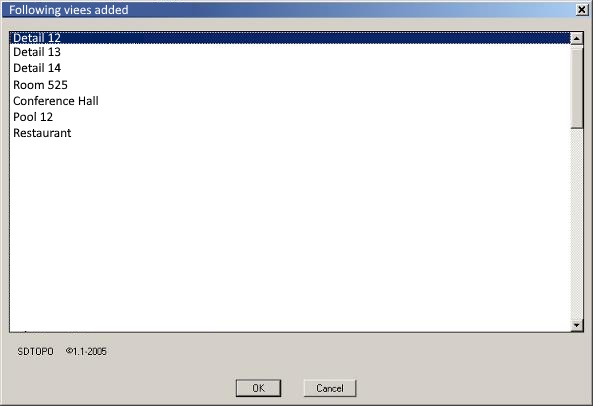
Complete list of imported views
Verifying Imported Views
You can now use the standard view management commands (like ZVV for recalling views) to access and utilize the imported views in your drawing workflow.
Post-Import Check:
After importing views, it's good practice to:
1. Test a few views to ensure they zoom to the correct areas
2. Verify that layer states are preserved
3. Check that view scales are appropriate for your current drawing
The ZVIM command streamlines the process of transferring view configurations between drawings, promoting consistency and saving setup time in CAD projects.
^ Back to top