AutoCAD Layer Management
SDBox Design Software - Command guide for layer isolation, import, export, copy, and editing in CAD drawings
Freeze except selected ZF
Select via filters or on screen the Layers that will remain Thawed while all others become Frozen.
Using ZF and ZFF alternately, you can isolate a part of the Drawing and restore the rest of the drawing with ease.
Steps
- Run command ZF.
- Select Layers to remain thawed via filters or on screen.
- Selected Layers stay Thawed, all others become Frozen.
Notes:
The filter selection tab that opens can be dismissed with Esc and the command will continue.
If you have a set of Layers that you need to isolate frequently, select them from the "Layer" field of the tab. In subsequent uses, you can quickly reselect them by typing "Y" and Enter when the tab opens.
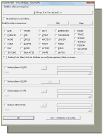
Filter selection interface
^ Back to topThaw all ZFF
Restores to Thawed state all Layers that are Frozen.
Using ZF and ZFF alternately, you can isolate a part of the Drawing and restore the rest of the drawing with ease.
Command Usage:
After using ZF to freeze unwanted layers, use ZFF to quickly restore the drawing to its original state.
Grey except selected ZFG
Select via filters or on screen the Layers that will remain in their original colors while all others appear in dark grey color 251.
Using ZFG and ZFGG alternately, you can make various objects distinct in a part of the Drawing and restore the original colors with ease.

Example: Original vs Greyed objects
Tips:
Use this command to visually de-emphasize background layers while focusing on specific details.
Restore original colors ZFGG
Restores all Layers to the colors they had before executing the ZFG command.

Restore original layers
^ Back to topHighlight Layer LLOL
Objects belonging to the selected Layer blink as you move the mouse on screen.
Objects in the selected Layer are also counted by type and number.
Steps
- Run command LLOL.
- Select a Layer from the list or by picking an object.
- Move mouse on screen (without selecting anything).
- All objects on that Layer will blink.
32..INSERT, 7..ARC
OK.... the Layer that was blinking was: 'Endeixeis' LLOL.
Command Usage:
Quickly identify and count all objects on a specific layer, useful for auditing drawings or finding misplaced entities.
Import Layer ZLAYINS
Import new Layers into the Drawing from predefined files of your choice (ZLAYINS1-5) which you can also modify.
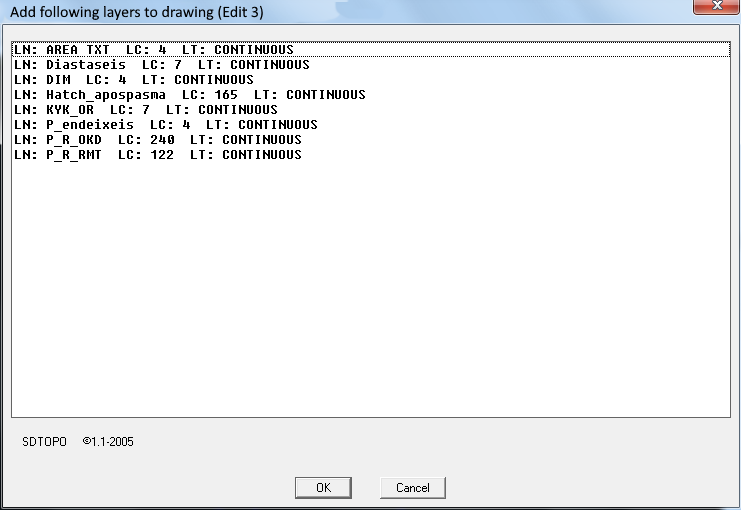
Layer import dialog
Notes:
The tab that opens shows the Layers that will be imported (Name, Color, Ltype).
You can select which of the 5 available editing files the command will read by running the ZVFE command or one of the ZLAYINS1-5 commands.
Selection - Configuration ZVFE
Opens a tab where you can view and edit the files that participate in various commands.
You can also select which file category each command will read when executed.
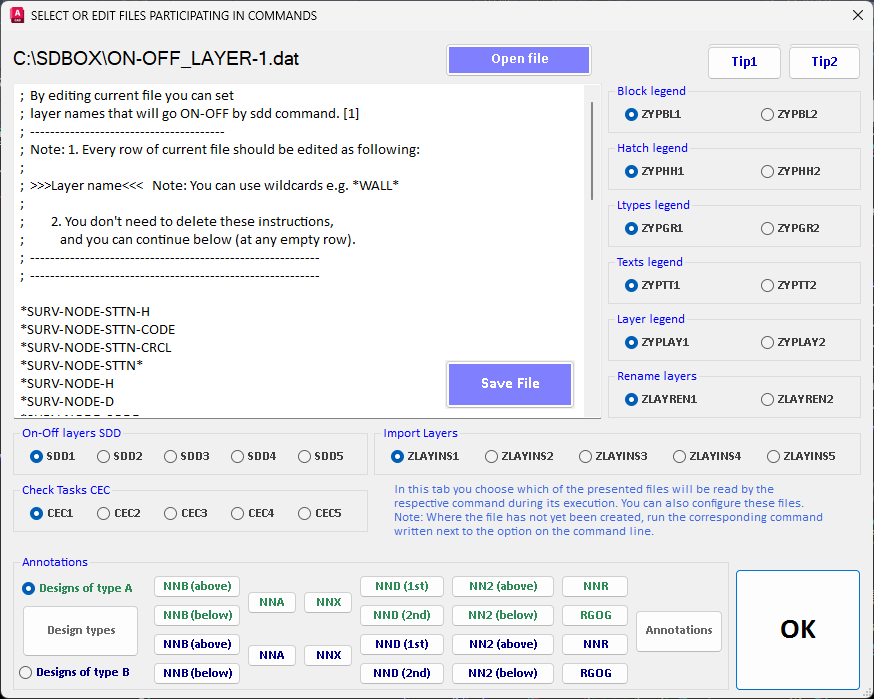
Command files configuration interface
Command Usage:
Centralized configuration for all SDBox commands that use external definition files. Essential for managing multiple layer sets, line type explanations, etc.
Editing - 1, 2, 3, 4, 5 ZLAYINS1-5
Select which of the 5 available files the ZLAYINS command will read during execution.
By typing ZLAYINS1, 2, 3, 4, or 5 you define which file the command will read accordingly, and you can also edit it if desired.

File selection prompt
Notes:
If you select No, you have simply set the ZLAYINS command to read file "1" and the command ends.
If you select Yes, the same is set as above and the command continues by opening the Layer import file for editing.
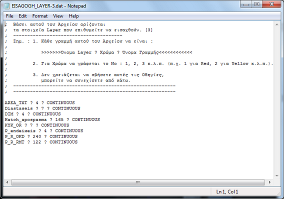
Layer definition file format
^ Back to topLayer Elements List ZLAYLISTP
Opens a Notepad file containing a List with the Layer elements of the Drawing in format: Layer '?' Color '?' Linetype.
You can, among others, copy these elements to the ZLAYINS command editing files and import them into other drawings whenever you want.
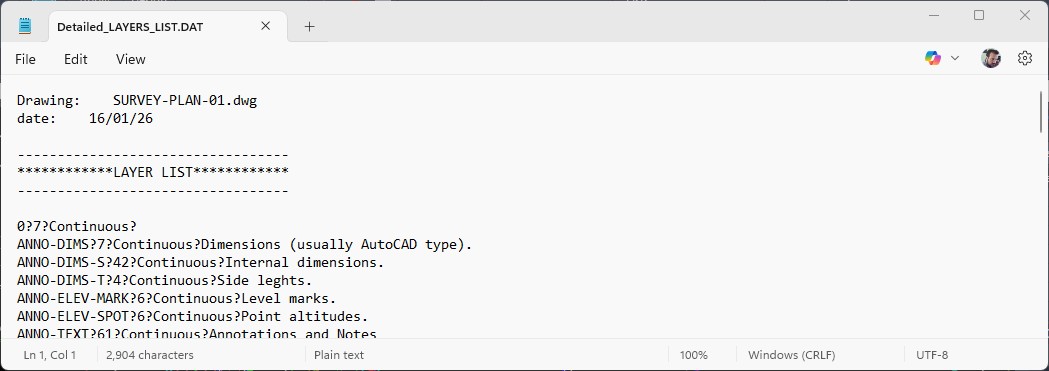
Layer elements export
^ Back to topOpen-Close Layer SDD
The command reads the Layers registered in one of the SDD1-SDD5 command files and if they are open it closes them or if they are closed it opens them.
This command makes it easy to manage drawings with many objects or cases where some Layers provide information when open and you can close them to have a clearer view of the Drawing.
Command Usage:
Create toggle groups for layers that you frequently need to show/hide together. For example, all annotation layers, all furniture layers, or all electrical layers.
Tips:
You can use wildcards in layer names. For example, "VEG*" will toggle all layers starting with VEG.
Open-Close Layer in Xref XDD
The command reads the Layers registered in one of the SDD1-SDD5 command files and if they are open it closes them or if they are closed it opens them in the Xref of the Drawing you have selected.
Works like the above SDD command with the difference that it only examines the Layers of Xrefs.
Change Xref XDDA
Change the Xref that commands like XDD use.
Notes:
You can run this command as many times as you want in the same Drawing and select different Xrefs.
Editing - 1,2,3,4,5 SDD1-5
Select which of the 5 available files the SDD command will read during execution so that the corresponding Layers are opened or closed.

SDD file selection prompt
Notes:
If you select No, you have simply set the SDD command to read file "1" and the command ends.
If you select Yes, the same is set as above and the command continues by opening the file for editing.
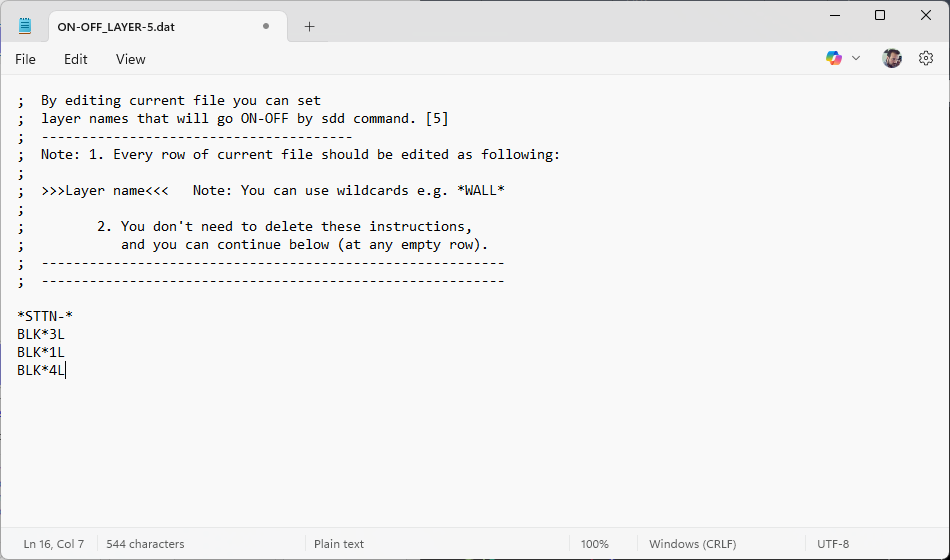
SDD layer group definition
^ Back to topDrawing Layer List ZLAYLIST
Opens a Notepad file with the names of the Layers that exist in the Drawing.
You can, among others, copy these elements to the SDD or ZLAYREN command editing files and define their properties.
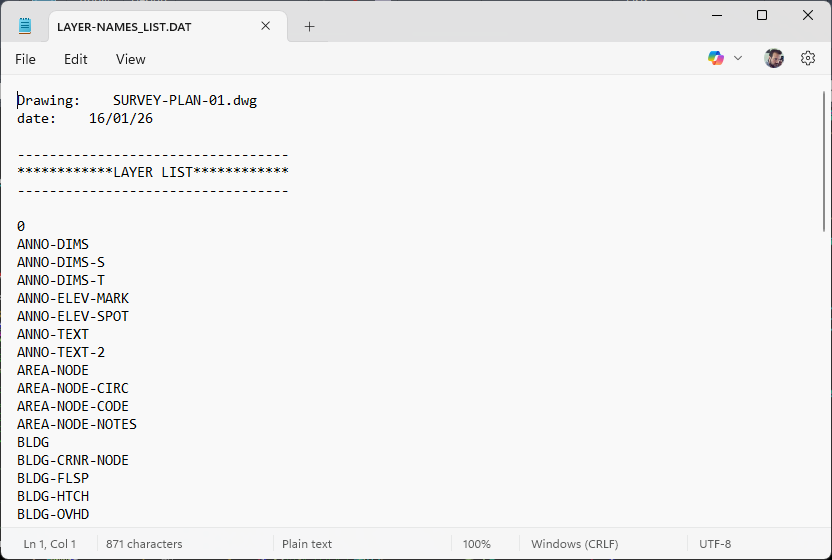
Drawing layer list export
^ Back to topCopy to Layer CTOLAY
Copy selected objects to an existing or new Layer.
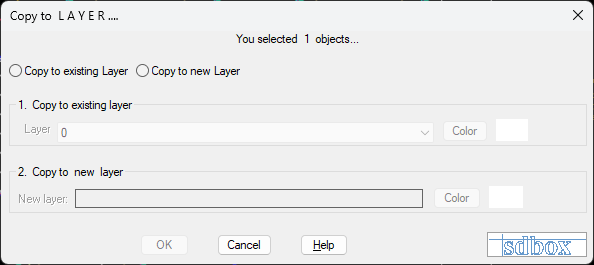
Copy to layer interface
Notes:
After pressing OK you can choose if all objects will acquire Color or LineType "bylayer" or will keep what they have.
Move to 1 Layer ZONELAY
Selected objects are moved to an existing or new Layer maintaining their Color and Linetype. The original objects are deleted.
Command Usage:
Consolidate objects from multiple layers to a single layer while preserving their visual properties (color and linetype).
Rename Layers ZLAYREN
Rename Layer from a predefined List that you can change, or from free Selection.
[F1:?]=selection The LAYER 'DR' exists in the Drawing! To be made .....? <Dromos> :
Notes:
If you press F1 or "?": Opens a list with the Layers of the Drawing where you can select objects of Layer 'DR' to be moved to another.
If you press Enter: You are asked to confirm the change of Layer 'DR' to 'Dromos'.
If you type a name: You are asked for confirmation and if the Layer exists then objects of Layer 'DR' are moved to it, or if it doesn't exist then a new one is created with Color and Linetype like 'DR'.
Command Usage:
The most common use of the command is during the electronic delivery of a Drawing where coded names of some Layers (as customary in an Office) change to clarify the contents of those Layers to recipients outside the Office.
Editing - 1,2 ZLAYREN1-2
Select which of the 2 available files the ZLAYREN command will read during execution so that the corresponding Layers are renamed.

ZLAYREN file selection prompt
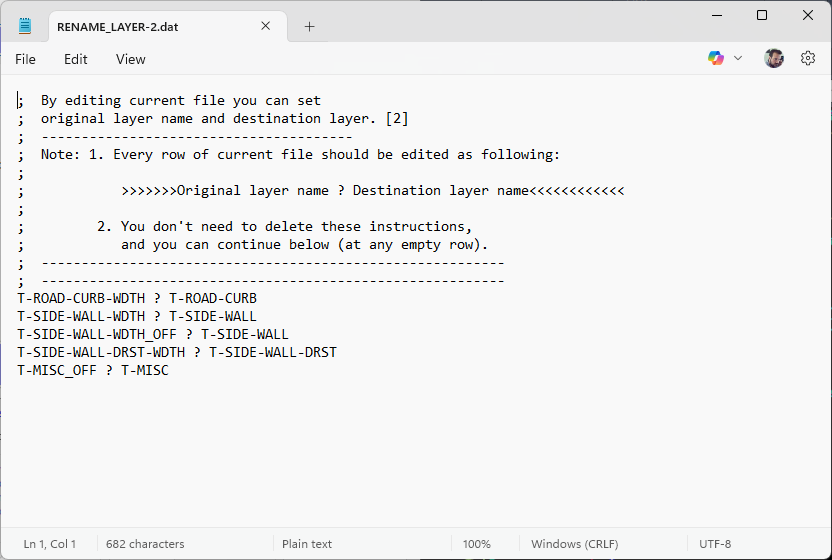
Layer rename definition file
^ Back to topConvert to Layer: **_OFF 2R
Copy objects to selected Layer and move originals to Layer with name the original plus suffix of your choice.
Write the suffix that will be added to the Layer that will be set to remain closed? <_OFF> :
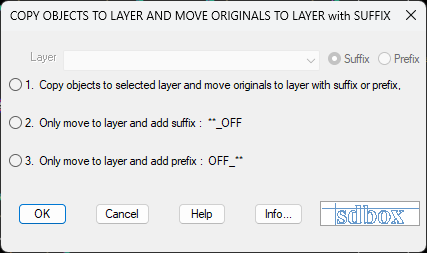
2R command in action
Notes:
This command was created from the need for some objects that are on a Layer which is open during printing to not appear.
Thus the process was selected to move them to a Layer which is set closed and its name is the same as the original with suffix "_OFF" at the end.
Current LMAN LLL
Displays at the bottom right of the screen the current selection of the LMAN command of Express Tools.
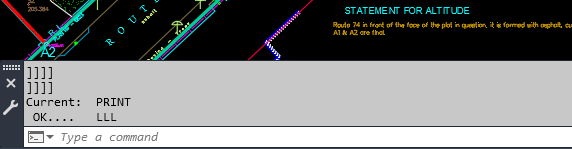
Current LMAN status display
Notes:
If no LMAN appears, then either none has been set or you are informed that there are Layers in the Drawing that have not been set in the current LMAN.
Delete LayerFilter DELLFIL
Deletes all Layer Filters that exist in the Drawing.
Command Usage:
Clean up drawing files by removing unused layer filters that may accumulate over time.
Layer Legend ZYPLAY
Layer Legend with explanations and categorization of Drawing objects.
Steps
- Run command ZYPLAY.
- Select insertion point for Layer Legend.
- The legend is created with Layer names, sample lines, and explanations.
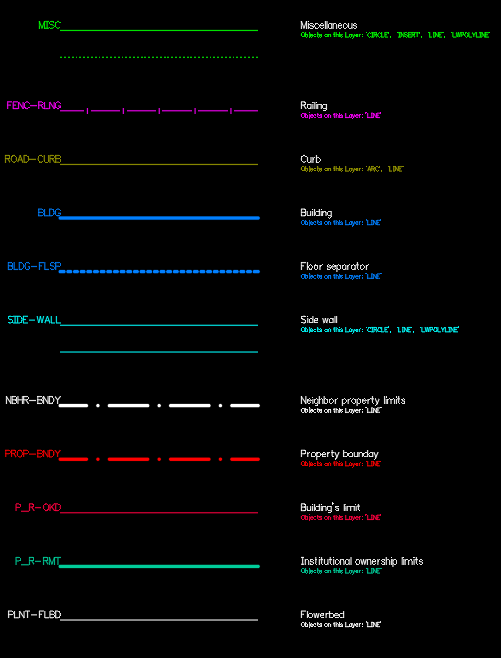
Layer legend created in drawing
Notes:
Left: The name of the Layer is recorded.
In the middle: Depending on the objects of this Layer, a line is drawn for objects that have a different color from bylayer and different ltype from bylayer.
Right: The explanation from the corresponding files (ZYPLAY1 or ZYPLAY2) is recorded and the type of objects that exist in this Layer.
Command Usage:
This command is used either during the electronic delivery of a Drawing where you explain for each Layer what it contains and what its significance is, or to have an overview of the objects that exist in each Layer.
Editing - 1,2 ZYPLAY1-2
Select which of the 2 available files the ZYPLAY command will read during execution so that the corresponding explanations are recorded in the Legend.

ZYPLAY file selection prompt
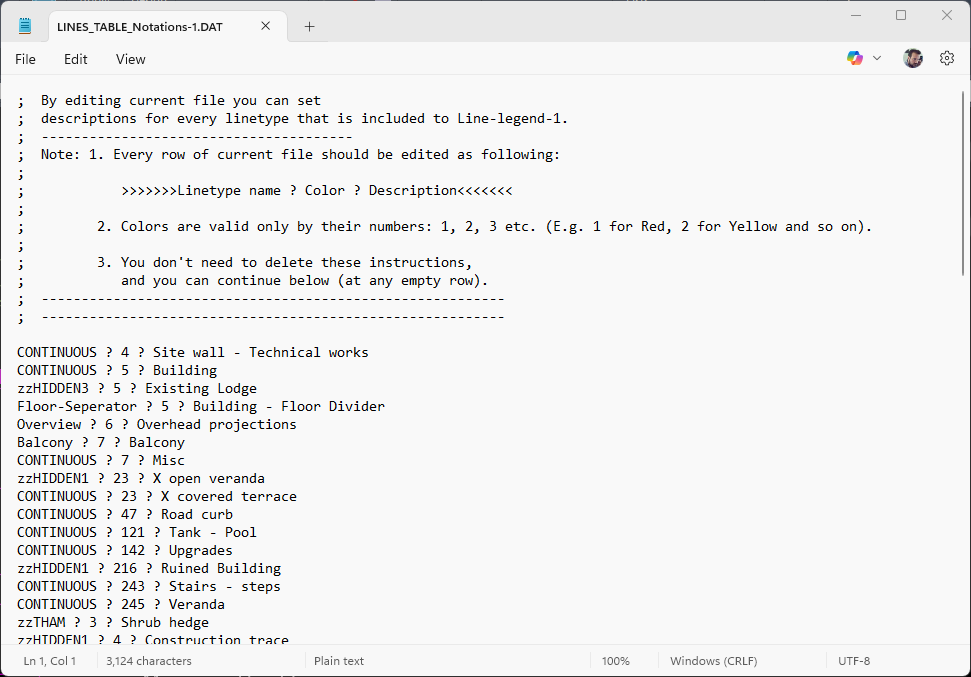
Layer legend definition file
Tips:
It is recommended to update the explanation files so that in each Line Legend the explanations are automatically included.