Offset Commands
SDBox Design Software - Advanced offset tools with layer management and automatic calculations
Offset with Layer Change OL
Object offset with simultaneous layer change.
Continuous offsets with predefined distance or through points, where new objects are transferred to a layer of your choice from the list of existing drawing layers or to a new layer.
Process
- Select Layer for offset objects.
- Specify offset distance or select Through.
- Select object to offset.
- Specify point on side to offset.
Specify offset distance or [Through] <Through> :
Select object to offset or <exit> :
Specify point on side to offset :
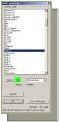
Layer selection interface
Notes:
The layer you select is saved and suggested in each new use of the command.
From this point on, the command works similarly to AutoCAD's offset command.
Detailed Steps
Specify offset distance or [Through] <Through> :
You give the distance for the offsets you will make or Through meaning you will give a point each time for the offset.
When you select offset by distance, then osnap is deactivated at the moment you select side and returns when the command ends.
Select object to offset or <exit> :
Select the 1st object to be offset.
Specify point on side to offset :
Select point on the side where the offset will be made.
The new object will be transferred to the layer you selected above.
Command Usage:
Useful for creating parallel elements on different layers, such as wall outlines, road markings, or mechanical parts.
Offset with Distance & Width OSK
Object offset based on length calculation and number of widths that fit in that length.
With this command, the offset distance is calculated by giving a length on screen and the number of widths that will fit in that length.
Process
- Select 1st point for total length.
- Select 2nd point for total length.
- Enter number of widths.
- Select object to offset.
- Specify point on side to offset.
Give 1st point for total length:
Give 2nd point for total length:
Number of Widths? :
Select object to offset or <exit> :
Specify point on side to offset :

Width calculation based on length and number of widths
Notes:
You give the number of widths that will fit in the above length.
With the length and number of widths, the column width is calculated and you are asked for confirmation.
If you don't agree, you will re-enter number of widths for new column width calculation.
From this point on, the command works like AutoCAD's offset with the distance calculated for column width.
Command Usage:
Perfect for creating evenly spaced elements like columns, studs, or structural members where you know the total space and number of elements.
Offset with Multiple Widths OSKM
Continuous offset based on length calculation and number of widths.
The command works like the above OSK with the difference that all calculated widths are drawn automatically.
Process
- Select 1st point on object for offset.
- Select 2nd point for end of offsets.
- Enter number of widths.
- Select 1st object for offset.
Give 1st point on object to be offset:
Give 2nd point for end of offsets:
Number of Widths? :
Select 1st object for offset:
Visual Example

Multiple offset calculation example
Notes:
You give the number of widths that will fit in the above length.
With the length and number of widths, the column width is calculated and you are asked for confirmation.
If you don't agree, you will re-enter number of widths for new column width calculation.
For example, in the above example if you give number of widths 5:
Select 1st object for offset:
Select the object which will be offset 5 times at width 0.20 and in the direction of 1st -> 2nd point you selected for length calculation.
You are asked to confirm if offset will be made for the last width:
In the above example, the last line is already drawn in the Drawing so you would answer no.
Application Examples
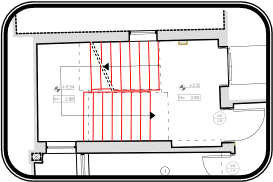
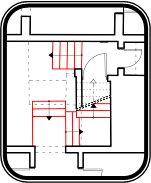
Stair creation and structural grid applications
Command Usage:
Ideal for creating stairs, structural grids, evenly spaced partitions, or any repetitive offset pattern.
Offset BFF BFF
Repeated offset at specified distance with selection of points inside closed areas.
Process
- Select Layer for objects to be offset.
- Give offset distance.
- Select point inside closed areas.
Give Layer for 'objects to be offset' :
Give distance [offset] <0.05> :
Select point internally.... :
Visual Examples



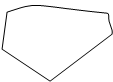
Various objects for offset operation



Offset results with distance 0.05
Layer selection for offset objects
Notes:
The layer you select is saved and suggested in each new use of the command.
You give the distance with number or with dimension on screen.
Select point internally in as many closed areas as you want to have offset.
Command Usage:
Excellent for creating insulation layers, clearance zones, or buffer areas around multiple closed shapes.
Offset BFF2 BFF2
Repeated double offset at 2 specified distances with selection of points inside closed areas.
The command works like the above BFF with the difference that you give two distances for the 1st and 2nd offset.
Visual Examples
Original objects
First offset results


Second offset results (double offset)
Notes:
Similar to BFF but creates two concentric offsets at different distances from the original boundary.
Command Usage:
Perfect for creating double insulation, fire-rated assemblies, or compound wall sections with multiple layers.