Default Layer Selection
SDBox Design Software - Guide for setting default layer, color, and linetype settings in CAD commands
Overview
Most commands that draw objects on screen provide the ability to select the suggested Layer from the command tab and the final drawing Layer from a List that opens before drawing begins.
This functionality ensures consistent drawing standards and allows for quick verification of drawing properties during rapid design work.
Key Feature:
The layer selection appears in every use of the commands and aims to control what is being drawn during fast-paced design work.
Command Tab Section
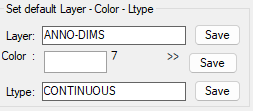
Command tab section for default settings
In this section of each command's tab, you define the Layer, Color, and Linetype that will be suggested when using the command.
If the command tab has a list where various sub-commands are selected, then the above section of the tab changes according to the category.
You can have the same suggested settings in all categories.
Important:
Settings are saved only after you press Save in each field.
The selections you have made for all commands (in the respective tabs) can be transferred to another computer through the Settings.
Usage:
This feature is particularly useful when working with templates or when you need to maintain consistent drawing standards across multiple projects or team members.
Layer Selection Dialog
After finishing with the tab, the following dialog opens to confirm that you want to draw on the suggested Layer or to select other settings:
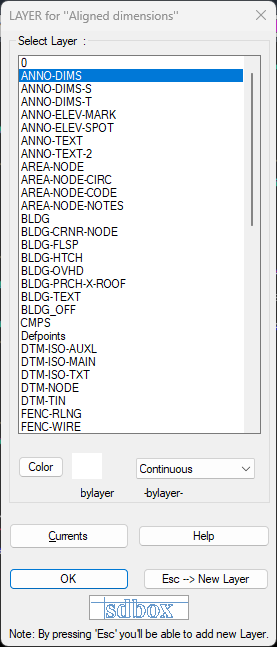
Layer selection dialog with options
Pro Tip:
You can accept the suggested settings simply by pressing Enter and continue with the command, speeding up your workflow significantly.
Available Options
You have the following options in the Layer Selection dialog:
A. Press Enter
Simply press Enter to accept the suggested settings.
B. Select Different Settings
Choose another Layer, Color, or Linetype.
The different selections you make will be suggested in each use of the command in this drawing, regardless of the Layer you have set as default suggested.
In a New Drawing, what you have set as default suggested will be proposed again.
C. Currents
Sets the current Layer, Color, and Linetype that the Drawing has at this moment.
D. Escape and Manual Entry
You can press Escape and define a new Layer by typing it in the Command Line and selecting Color.
Note:
Another reason for this functionality is to allow you to draw objects of the same command in different Layers with ease.
Important Notes
Notes:
The Layer selection appears in every use of the commands and aims to control what is being drawn during fast-paced design work.
You can accept the suggested settings simply by pressing Enter and continue with the command.
Another reason is to allow you to draw objects of the same command in different Layers with ease.
Best Practices:
Set up your default layers according to your company or project standards to ensure consistency across all drawings.
Use the Currents option when you need to temporarily match existing objects in the drawing.
Remember to save your settings after making changes to ensure they persist for future use.
Integration:
This layer selection system integrates with all SDBox drawing commands, ensuring a consistent workflow whether you're drawing lines, blocks, text, or any other CAD elements.