Contours (DTM / TIN)
SDBOX command reference for calculating, reviewing and drawing contour lines from TIN / DTM terrain triangles inside CAD
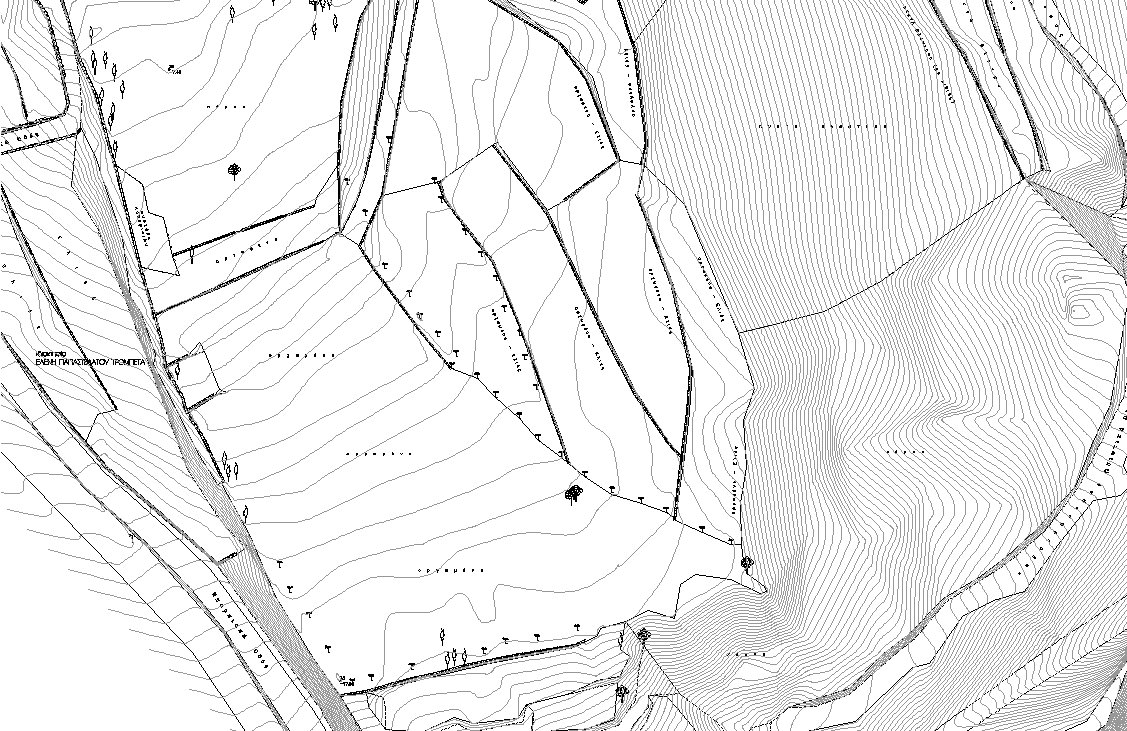 Contour Lines
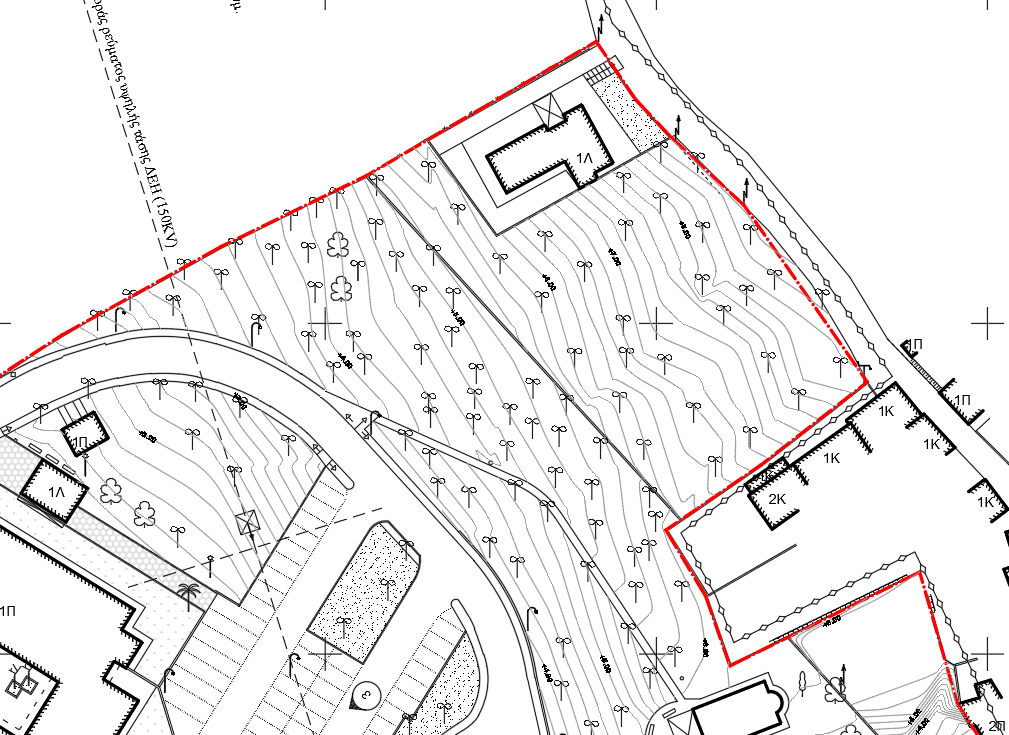 DTM & Boundaries
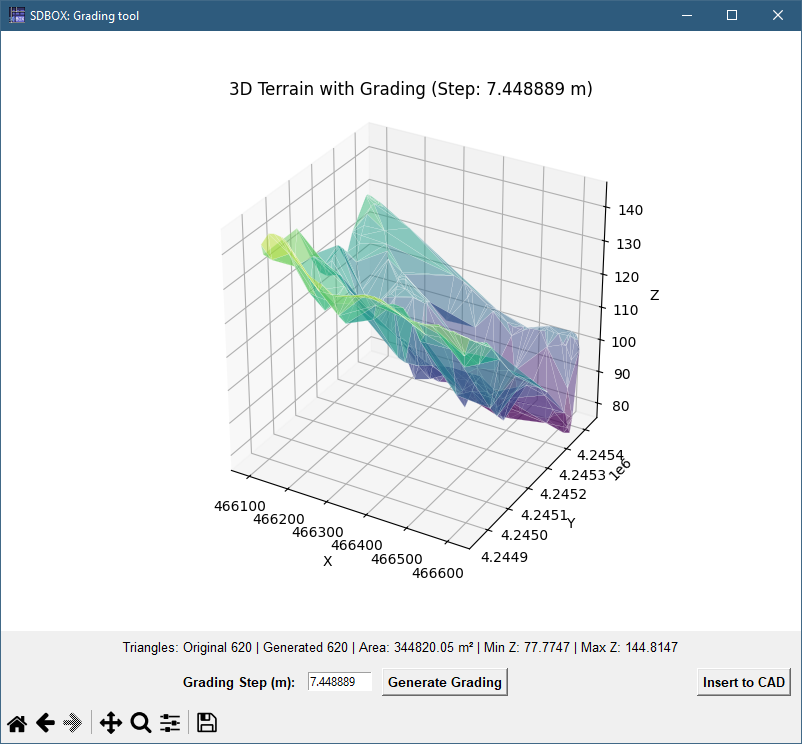 3D Terrain
Workflow Overview DTM
Calculates and draws contour lines from a triangulated terrain surface made of 3DFACEs.
After creating the TIN / DTM terrain model from the survey points, you can generate temporary contours for checking and refinement, then create final contours for the production drawing.
Before generating contours, check the triangulation so that missing connections, duplicate triangles and invalid geometry do not affect the result.
Recommended checks before generating contours
- TTH: Shade the terrain triangles to make gaps and incorrect connections easier to identify.
- ZTTDBL: Detect and remove duplicate triangles.
- ZTTKK: Detect zero-area or vertical triangles for review and correction.
- ZTTSD: Detect cases where more than two triangles share the same edge.
Typical contour workflow
- Create temporary contours from the selected terrain triangles and review the result.
- After the triangulation is verified, create the final contours.
- Optionally smooth the final contours; smoothing can be removed later if further editing is required.
- Add contour elevation labels automatically or at selected locations.
Contour-line workflow
^ Back to topTemporary Contours (Calculate + Draw) IIJ
Calculates and draws temporary contour lines from the selected terrain triangles.
On the first run, select the terrain triangles and define the contour interval. On later runs, IIJ recalculates the temporary contours from the same triangle set, including any changes made to the triangulation.
Operation
After the required settings have been defined, SDBOX calculates and draws the temporary contours automatically.
Notes
Temporary contours are separated into major and minor contour sets, using different drawing properties for easier checking.
The contour interval can be set to the value required for the project, including small intervals where the terrain model supports them.
When to use it
Use IIJ after editing the triangulation when you want to review updated temporary contours before creating the final contour set with ZDTMISO.
Tips
After IIJ has created the temporary contour set, use IIJK for a faster redraw while inspecting the drawing.
During inspection, use TTV to toggle terrain triangles and SSV to toggle the DTM point layers.
Fast Temporary Contour Redraw IIJK
Redraws the existing temporary contours without repeating the full contour calculation.
Use it while zooming and panning through the drawing when the temporary contour geometry has already been calculated and only the display needs to be refreshed.
Operation
SDBOX redraws the existing temporary contour set automatically.
Tips
After running IIJK, the command can be repeated quickly during visual checking, making it convenient for continuous contour inspection.
Recalculate Temporary Contours (Reselect + Interval) IIJR
Lets you redefine the triangle selection and contour interval, then recalculates the temporary contours.
Use IIJR when either the active terrain-triangle set or the contour interval needs to change.
Select objects:
Notes
IIJR performs a full recalculation, so it is intended for changes to the contour setup rather than simple display refreshes.
Final Contours ZDTMISO
Creates the final contour lines for use in the production drawing.
ZDTMISO uses the current terrain triangulation and contour settings to create the final contour geometry. If the triangulation is edited later, the final contours can be deleted and generated again.
When to use it
Run ZDTMISO after the temporary contour result has been checked and the terrain triangulation has been finalized.
Smooth Contours IP2S
Smooths contour polylines to improve their cartographic appearance.
Smoothing is normally applied after the final contours have been created, when a more continuous visual appearance is required. If terrain or contour editing is still expected, leave smoothing until the final stage.
Tips
Apply smoothing only after the contour set is stable; otherwise further triangulation edits may require the contours to be regenerated.
Remove Smoothing IP2L
Removes the smoothing applied by IP2S and restores the previous contour geometry.
Use it when smoothed contours need to return to their unsmoothed state for further editing or checking.
Label Major Contours on Straight Segments SSA
Places elevation labels on major contour lines along suitable straight segments.
The labels are positioned on suitable straight portions of the major contours so they remain clear and readable in the final drawing.
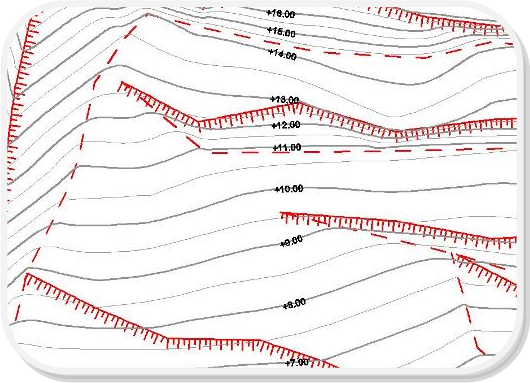
Elevation labels on major contours
When to use it
Use SSA after the final contour geometry has been confirmed so labels do not need to be recreated after later edits.
Add Individual Contour Labels SSAS
Places an individual contour elevation label at a selected location.
Use it when a contour needs a label at a specific location rather than through the automatic major-contour labeling workflow.
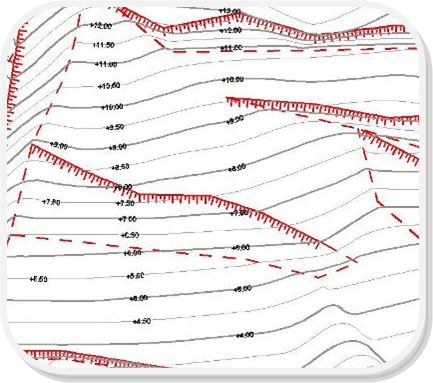
Individual contour elevation label
^ Back to topOpen / Close Contours IIV
Opens or closes selected contour polylines.
Use it when the contour geometry needs to be opened or closed for drawing presentation or a specific drafting requirement.
Notes
Before changing a contour from open to closed, verify that the underlying contour geometry supports the required result.
Delete Multiple Contours ZEEISO
Deletes multiple contour lines in one operation.
Use it when an existing contour set needs to be removed before recalculating or redrawing contours after terrain-model changes.
If filtered object selection is required, use the standard SDBOX selection tool:
Filtered object selection
^ Back to top