Getting started with SDBOX
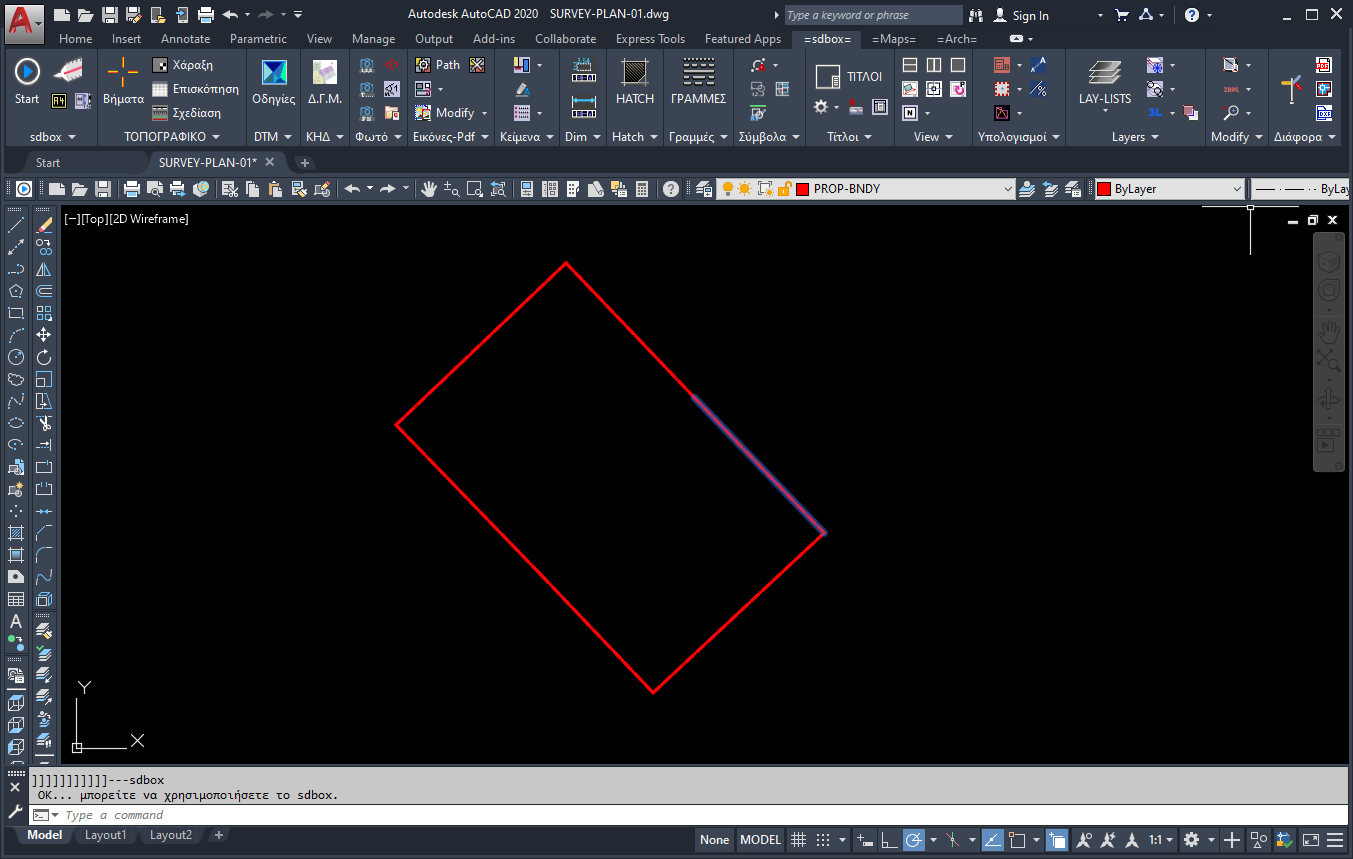
SDBOX is designed for CAD users who want practical production tools inside their familiar CAD environment:
You do not need to learn a new design platform. SDBOX works as an extension of CAD, so you can start with the tools you need most and gradually expand to complete workflows.
AutoCAD
BricsCAD
progeCAD
GstarCAD
ZWCAD
1 Installation and activation
Using SDBOX begins with installing the trial version, available from the official SDBOX website.
⬇️ Download SDBOX Trial
After installation, SDBOX becomes available through dedicated CAD menus, ribbon tabs and command tools.
Free 30-day trial - Start now!
Video guide: There is a short installation video available, showing the process step-by-step.
2 Start with a simple drawing
SDBOX can be used with both new and existing drawings.
You can keep:
You can keep:
- Your existing CAD files and drawing structure
- Your normal layer and editing workflow
- Your usual checking, plotting and delivery process
In practice:
- Open or create a CAD drawing
- Choose the SDBOX tool that matches the task
- Review, edit and complete the result directly in CAD
3 Use commands when you need them
You do not need to use everything from the beginning.
SDBOX is designed so that individual tools can be used independently, while complete workflows are available when you need them.
For example:
SDBOX is designed so that individual tools can be used independently, while complete workflows are available when you need them.
For example:
- Start with survey point handling and plan drafting
- Add map backgrounds or geospatial files when location data is needed
- Use terrain modeling, sections or volumes when the project requires them
- Finish with tables, legends, title blocks and PDF output
💡 Note: The order is not fixed. In some projects you may start from survey points; in others, the first step may be a map background, a geospatial file or an existing CAD drawing.
4 Help when you need it
Every SDBOX command comes with built-in help, accessible directly from within CAD, so you can see what it does and how to use it without interrupting your work.
Additionally, there are detailed guides and examples covering complete processes, such as:
Additionally, there are detailed guides and examples covering complete processes, such as:
5 Learn gradually
SDBOX includes many tools and workflows, but you do not have to learn them all at once.
Start with the tools that solve your immediate task, then add more workflows as real projects require them.
Start with the tools that solve your immediate task, then add more workflows as real projects require them.
Basic principle: Learn by workflow, not by memorizing commands.
How to continue
📄 Survey Plan Drafting PDF
Step-by-step workflow from source data to final deliverable. 🎬 Installation Video
Watch the installation process step-by-step.
Step-by-step workflow from source data to final deliverable. 🎬 Installation Video
Watch the installation process step-by-step.
🔍 For more targeted information:
Return to Manual Portal
- Use the Search in the Manual Portal
- Choose from Quick links
- Continue with Survey Plan Drafting for a complete production workflow