ITAX: Insert Points from File
SDBox Design Software - Command guide for importing coordinate points and symbols into CAD drawings
Insert Points from File ITAX
File Format & Options
Import Symbols (Blocks) and/or other objects into the Drawing from a coordinate file.
You can select any file (txt, xls, csv, sdr, pp, gg …) that contains lines with coordinates, with or without a code at the beginning, and with or without Z and description at the end. The file is processed and analyzed, and you are informed of any errors or ambiguities.
Each symbol (Block) contains at least: Point, Code field, Elevation field, Description field. Symbols such as Stations, Trigonometric points, etc. also contain a circle and additional fields for information that may exist in the import file.
Basic Symbols:
- Tachymetric points
- Stations
- Trigonometric points
- Reper
- Axial intersection K
- Tachymetric Point
- O.T. Vertex
- Property vertex of Application Act
- Point Small
- Point Medium
- Point Large
- Point Xlarge
- Point from handheld GPS
- Station from GPS RTK
- Point from GPS RTK
- Dependency Point
- Old points of the above Categories
- Any of your own Blocks
Additionally, the following can be imported (without codes, Z, or other information):
- Simple Points (Nodes)
- Circles (with radius you provide)
- Automatic Polyline drawing
You can also make combinations of the above options.
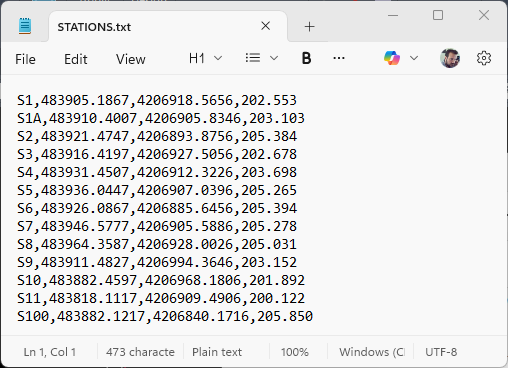
File format and options selection
Notes:
Briefly, you define the following:
- Whether the file contains a code at the beginning or only coordinates.
- The delimiter of each line's fields (e.g., comma, tab, space, other).
Subsequently, depending on the initial letter of each file line, the corresponding symbols will be inserted. For example, if you want points starting with S or K to be inserted as Stations, then you write "S K" in the corresponding field.
Tips:
If you want all points to be inserted with the same symbol, write all the initial letters (K, S, T, O, D) or write *.
Step-by-Step Analysis of the Command
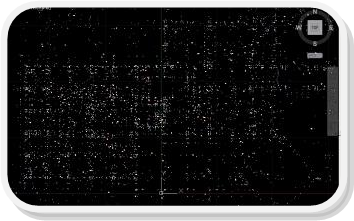
Preview of final result
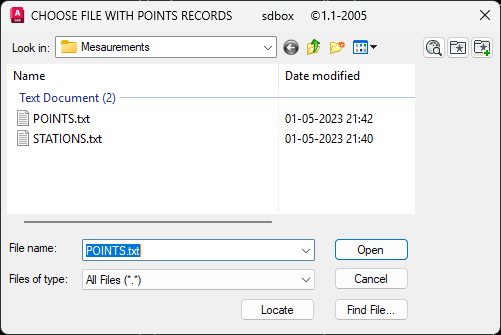
File selection for import

Parameters configuration tab
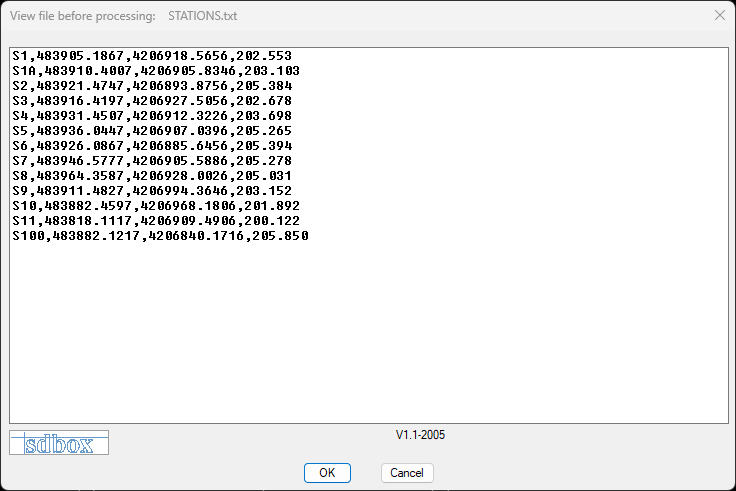
Preview of oringinal file
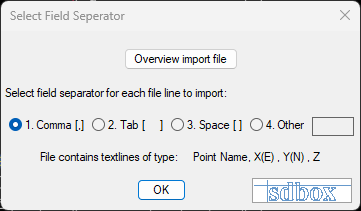
Set field seperator
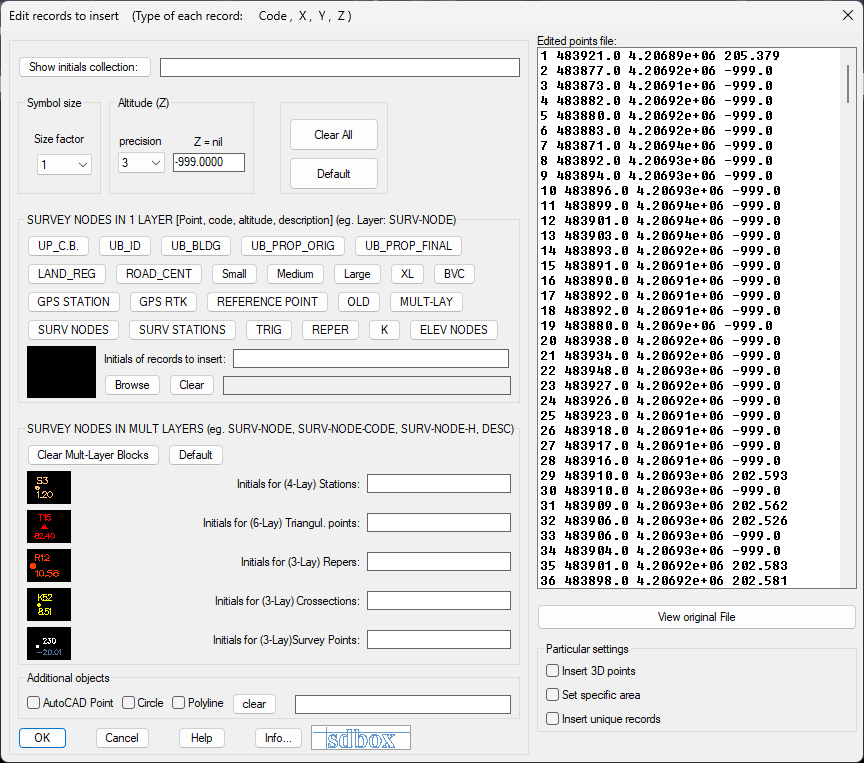
Settings for nodes to import
After closing the tab, you select a Layer for each category to be inserted, and then the points are automatically drawn on the screen.
Details: Layer Selection
^ Back to topParameters Explanation
In the above tab, the import parameters are defined. Parameter analysis:
Display of initial code letters
The initial letters of the codes at the beginning of each line are filtered and listed in the corresponding box as many different ones are found.
You can copy them from there and paste them into whichever point or object categories you want to be inserted.
Example for lines:
S10, 85.545, 9.524, -0.3859
S11, 45.335, 12,988, 10.258
T10235, 252.522, 124.555, 78.5856
80, 143.534, -24.8574, -0.4125
81, 150.747, -33.1424, -0.4192
82, 150.889, -32.985, -0.3358
After filtering, "S T 8" is written. So if you select the "STATIONS" symbol and in the field "Initial Codes for Import: S T", then only lines starting with S or T will be inserted as Stations.
Points to be imported 3D
In this case, points are imported three-dimensionally with Z as written in each row of the file. NO need for 3D import for "Elevation in View" or "Triangle and Contour Calculation".
Import within Drawing area
Only points whose coordinates are within an area you select on the screen are imported (e.g., in case of a very large survey where interest is in a part of it).
Block Size
Size factor of the Blocks being inserted. If you want larger Blocks, choose a factor greater than one; if smaller, the opposite.
Decimals for displayed Z
Refers to the decimal places of the point elevation written in the corresponding Attribute "H" of the Blocks you insert.
Number for Z=nil
Refers to the number written in the file in the Z field (after x,y) when the point does not have an elevation measured and you do not want anything written in the corresponding Attribute "H" of the Blocks you insert. Usually this number is -999.00.
If nothing is written in the corresponding field in the file, then nothing will be written in the Attribute "H".
Import unique records
Points with the same codes and same coordinates are inserted only once in the drawing.
Clear all
All codes from the tab fields are cleared.
Default
The default codes are written in the tab fields.
Clear Mult-Layer Symbols
All codes from the tab fields concerning Mult-Layer Blocks are cleared.
Mult-Layer
Blocks with a Layer for each field (point, code, symbol, elevation).
Custom Symbols
Blocks where all their fields are on one Layer.
MULT-LAY: With this option, when points contain a description (Description), then descriptions are automatically grouped and Layers are automatically created upon import according to the description. These Layers have the prefix "descr_" so you can distinguish them. The format of the file you import must be of the form "Code or numbering, X, Y, Z, description". Points without description go into the Layer "descry_No-Description".
Old
Select from a Windows window Blocks of the above categories for points that are either abolished or have newer measurements.
Browse
Select from a Windows window any Block with or without Attributes. The Block you select and its Path are recorded and suggested in each new use of the command in any Drawing.
Drawing with each Point, Circle, Polyline
You can import each of these objects or a combination between them or a combination with the above Blocks.
- Point: Simple Points are inserted at the coordinates written in each line of the file.
- Circle: Circles are inserted with center at the coordinates of each file line and radius you provide for all before import.
- Polyline: A Polyline is drawn starting from the 1st point of the file and at the end you can choose whether it will close or not.
All of the above (as with Blocks) are drawn for those file lines starting with the codes you write in the corresponding box.
Example of custom symbols configuration
^ Back to topImportant Tip
As analyzed above, the ITAX command, besides other parameters it has, is divided into two areas for point import:
1. Custom Blocks:
Contains all basic symbols and many others (GPS points, Dependency, View points, etc.) where all elements of the symbol are on one Layer.
Very few new Layers are created in the drawing and there are many management possibilities for the points. When points are inserted this way, you can change color (e.g., some tachymetric in red or those concerning elevations in magenta, etc.) or change Layer during drawing (e.g., TAX-SHM_OLD or STA-SHM_OFF, etc.) or import into different Layers (e.g., TAX-SHM_Epilisi-1 or STA-SHM_Nees or TAX-SHM_22-02-014, etc.).
You can also distinguish points from tachymetry resolution from those measured with GPS as suggested below.
2. Mult-Layer Blocks:
Contains only the basic symbols of Topography (Stations, tachymetric, trigonometric, reper) and are symbols (block) where each part of them (point, code, elevation, description) is on different Layers.
The usual case for choosing this option is when you want to hide (Layer-> Off) e.g., the elevations of points or other elements. For this exact reason (for drawing convenience) the command SDD was created, which turns points on/off whenever you want.
For each point type, ~5 Layers are created in the drawing, and there is no possibility of changes or import into other Layers from the default.
Generally, it is not recommended to use Mult-Layer Symbols. This part was added upon request of some users for special use. The original form of the command, which is Custom Blocks, remains the most proper use of the command and this is recommended.
The difference between the two cases has to do only with the editing capabilities of the drawing points and the number of Layers added to the drawing.
Custom Blocks recommended usage:
STATIONS: It is recommended to import them into the drawing with this block in the Layer SURV-NODE-STTN which is suggested as default.
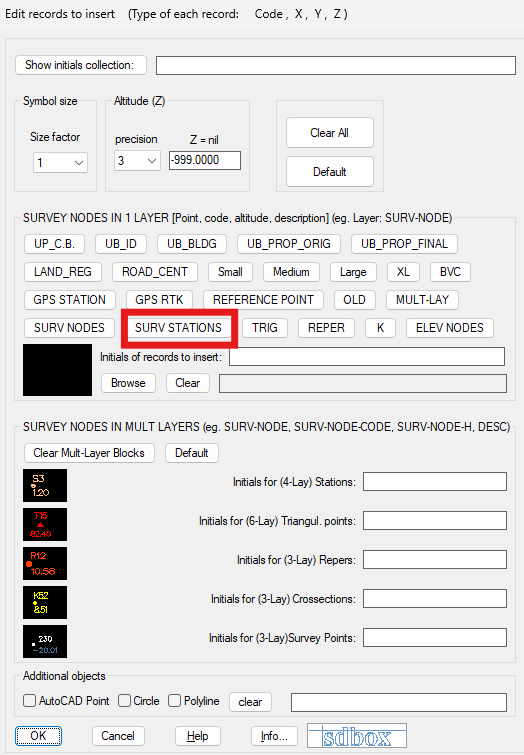
STA-SHM block example
TACHYMETRIC: With this block in the Layer SURV-NODE which is suggested as default.
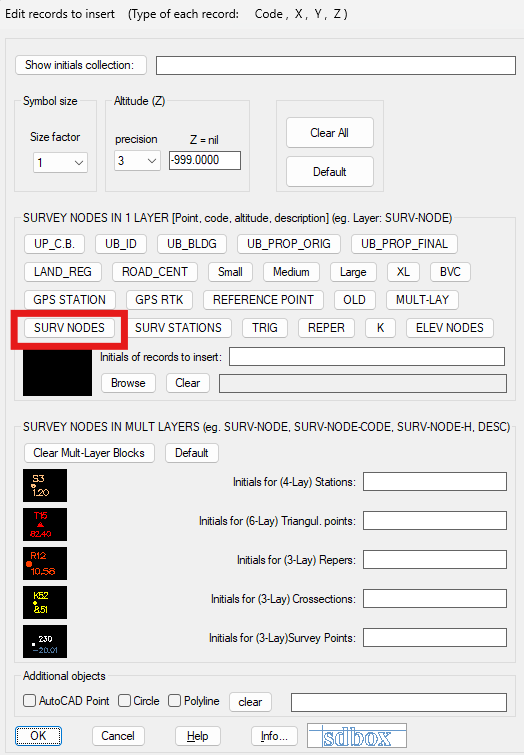
TAX-SHM block example
Stations from GPS: With this block in the Layer SURV-NODE-STTN-GPS which is suggested as default.
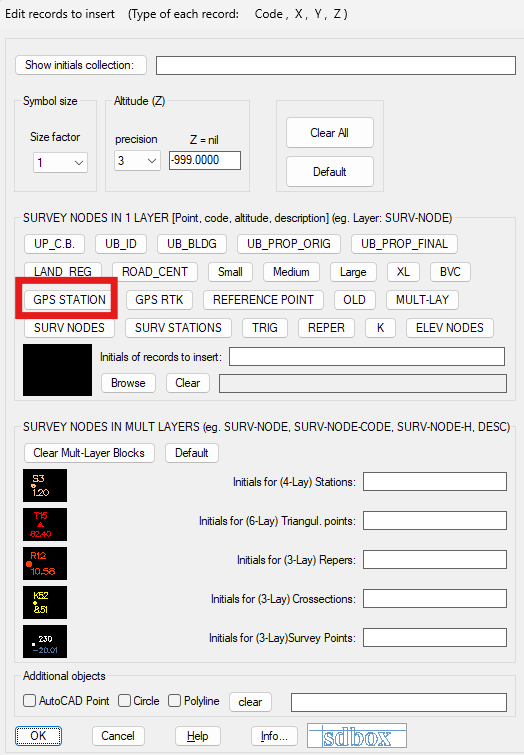
STA-GPS block example
Points from RTK: (Tachymetric with GPS) with this block in the Layer TAX-GPS which is suggested as default.
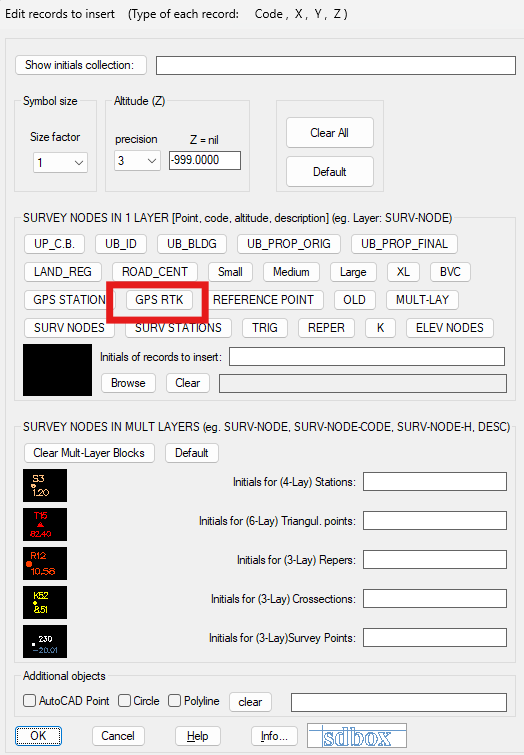
SURV-NODE-GPS block example
Thus, within the drawing, for points, only the following Layers will exist:
- SURV-NODE-STTN-GPS (red)
- SURV0NOSE-STTN (orange)
- SURV-NODE-GPS (olive)
- SURV-NODE (white)
which you can manage regarding their color or their layer, or import new ones into other Layers (e.g., tachymetry phase 2 in Layer SURV-NODE_2, etc.).
Generally, it is recommended that any layers concerning stations have naming beginning with STA-*** and any tachymetric SURV-NODE* for grouping.
^ Back to top