AutoCAD Text Types Legend
SDBox Design Software - Command guide for text management and documentation in CAD drawings
Text Types Legend ZYPTT
Legend of Text, Mtext and Rtext types selected from the Drawing.
A List is created on screen (in legend form) showing the various text types existing in the Drawing according to TextStyle, Color, size, Layer, etc. and explanations you have provided in a file using the ZYPTT1 or ZYPTT2 commands.
It usually serves cases where drawing texts are organized with different colors and Text Styles per category.
DRAWING on screen
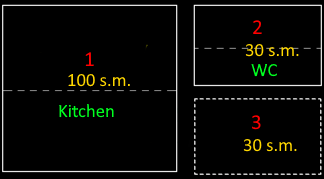
Drawing view with different text types
EDITING FILE for ZYPTT1 or ZYPTT2 commands
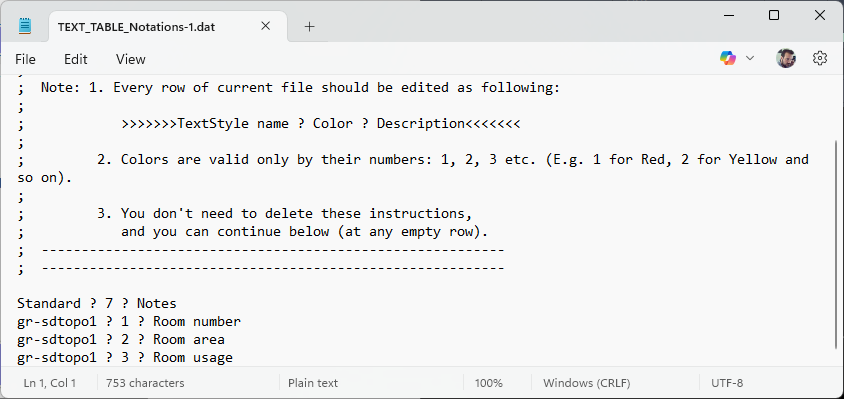
Settings file for text explanations
Text Legend
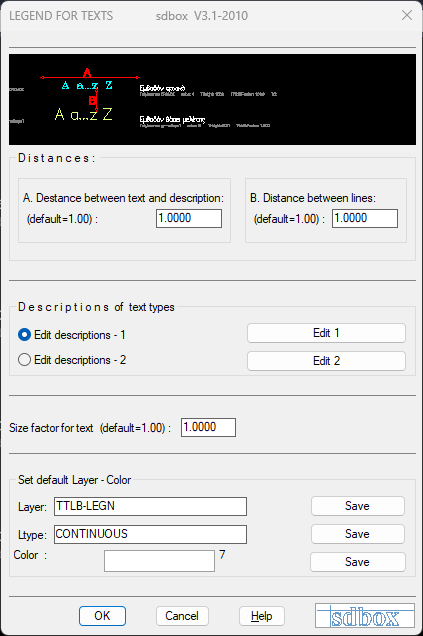
Legend Settings
Notes:
The Layer, Tstyle and other elements written on the right in small letters can be deleted after the command completes and you want to prepare the Legend for printing.
These elements are presented to clarify the differences between text type categories.
Command Usage:
Besides inserting the Text Legend for printing, you can insert the Text Legend to identify even small differences in other elements of various categories (like size or color bylayer etc.) and correct the texts they belong to.
Tips:
When 2 or more categories appear identical and have identical other elements, then their differences are in the decimals of numbers for TextHeight, Width, Oblique or Rotation, and that's why they appear in the Legend.
If you have such a case, you should investigate why texts that you want with identical characteristics are drawn slightly differently from each other.
**The command name ZYPTT comes as an abbreviation of "z Υπόμνημα TexT" (Greek: "z Text Legend").
Text Selection
Select as many texts as you want from the Drawing. (ALL = select all texts)
After selection, texts will be analyzed and categories will emerge according to text type, size, Layer, color, rotation, etc.
See the General Command 'Layer Selection'
You have the ability to choose in what order the various text categories will appear in the Legend.
- TStyle: According to font type. (S)
- Layer: According to drawing Layers of categories. (L)
- Color: According to color. (C)
- THeight: According to character height. (H)
- TWidthFactor: According to character width factor. (W)
- TObliquing: According to character slant. (O)
- TRotation: According to text rotation angle.
Select the top-left point of the Text Legend to be created. After this selection, the Text Legend is drawn.
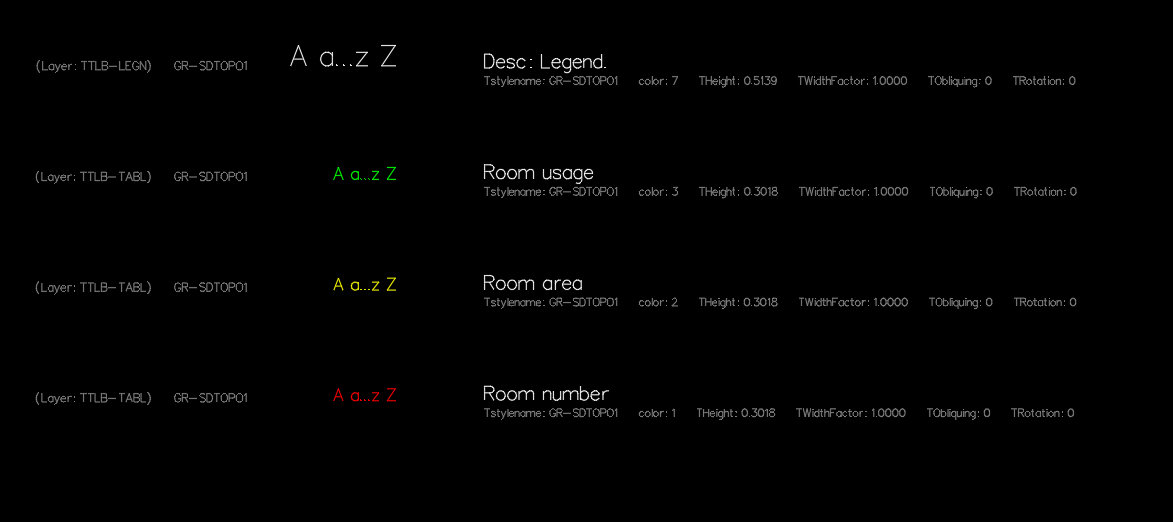
Inserting legend into drawing
Explanation configuration
Commands that open editing files: ZYPTT1, ZYPTT2
In these files you can write the explanation for each text type.
Text types in explanations are separated according to Textstyle and text color.
^ Back to topSelection - Configuration ZVFE
Opens a tab where you can view and edit the files that participate in various commands.
You can also select which file category each command will read when executed.
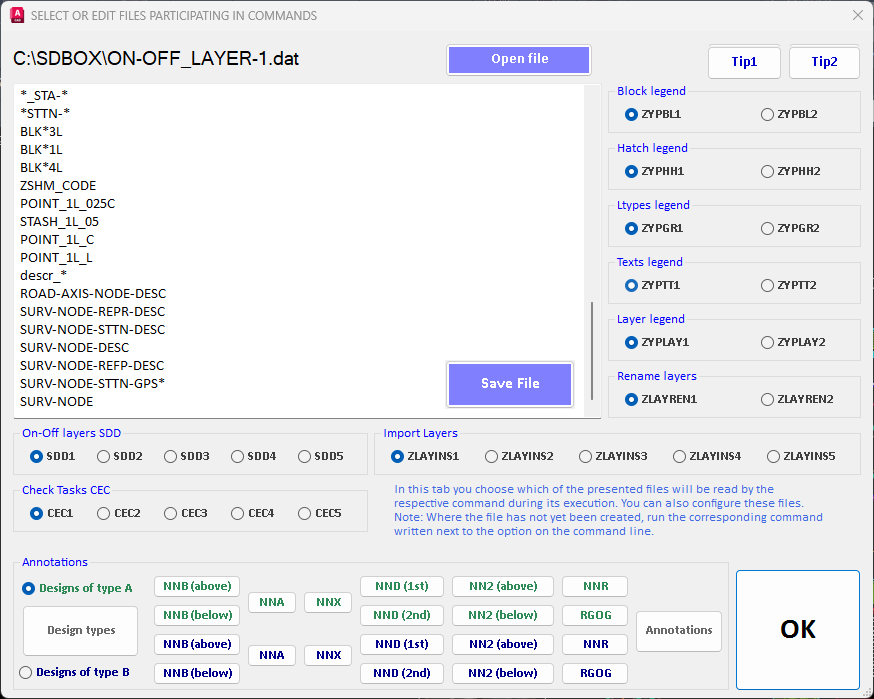
Command files configuration interface
^ Back to topEditing - 1,2 ZYPTT1, 2
Select which of the 2 available files the ZYPTT command will read during execution to write the correct explanation text according to Text Style type.
By typing ZYPTT1 or ZYPTT2 you define which file the command will read (1 or 2) accordingly, and you can also edit it if you want.
During Text Legend insertion, the explanations you have registered in the files of this command are written in the Drawing.
You can do the same by running the above ZVFE command.
File creation / editing
If you run the command for the first time and no file exists yet, the above message appears.
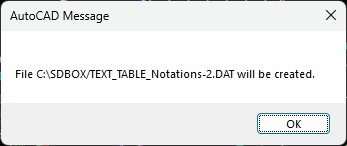
First execution message
ZYPTT1: Creates and updates file //SDBOX/YPOMNHMA_TEXT1.dat
ZYPTT2: Creates and updates file //SDBOX/YPOMNHMA_TEXT2.dat
Each time you run one of the above commands, the corresponding .dat file is set as default and the ZYPTT command searches for explanations in it.
If you don't run either of the 2, then YPOMNHMA_TEXT1.dat is set as default.

File opening question
Esc or No: The command ends and file //SDBOX/YPOMNHMA_TEXT2.dat is set as the one that the ZYPTT command (Text Legend) will read.
Yes: Again the above file is set as default and the command continues by opening it for editing.
Adding explanations
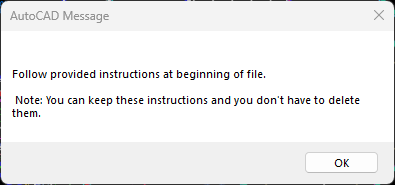
Adding new explanations
If the explanation file is empty then it opens automatically for adding explanations.
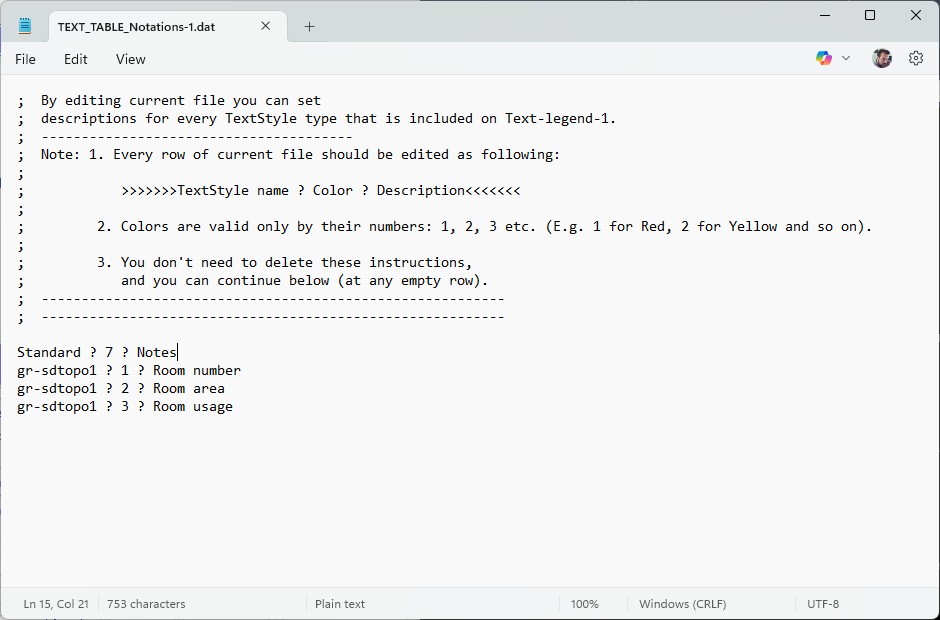
Explanation file format
Each line of the explanation file is as follows:
Text Style ? Color ? ...explanation text
e.g. For drawing texts that are on Layer "Dim_Dokon" and have TextStyle "Standard", have red color, you want the phrase "Beam Dimensioning" to be written as explanation in the Legend, then you must add the following line to the file:
Standard ? 1 ? Beam Dimensioning
When you run the ZYPTT command and select such texts in the Text Legend, it will appear:
(Layer: Dim_Dokon) Standard   A a …. Z Z  Beam Dimensioning
                               Tstyle: Standard  color: 7   Theight:1.0

Editing question for existing files
When files "YPOMNHMA_TEXT-1.DAT" or "YPOMNHMA_TEXT-2.DAT" already have written explanations for the Legend, then the command asks the above:
Yes: Opens the file and you add new explanations or corrections.
No: Does not open the file and only sets which file will be default and will be read by the ZYPTT command for Legend explanations.
Notes:
As mentioned above, when you reach the point where the explanation files are fully defined, then you use the ZYPTT1 and ZYPTT2 commands only to determine which file the ZYPTT command will read.
That is, when asked if you "want to open the file" by pressing No or Esc.
Command Usage:
Whenever you want to configure the explanation file or define which file the ZYPTT command will read for explanations.
Tips:
To create and configure the explanation files for the first times, it is recommended to export from a typical drawing for you the Textstyles with the ZTLIST command or detailed characteristics with ZTLS.
From the files that open with the above commands you can copy the TextStyles and Color to file "YPOMNHMA_TEXT-1.DAT" or "YPOMNHMA_TEXT-2.DAT".
Text Types List ZTLIST
Opens a Notepad file containing a List with the names of TextStyles contained in the Drawing.
The file is always \\SDBOX\TSTYLES_LIST.dat and all Text Style Names that have been defined in the Drawing in the AutoCAD "Text Styles" tab are exported.
You can, among others, use this command to copy the Text Style names to the Explanation files and then complete the descriptions.
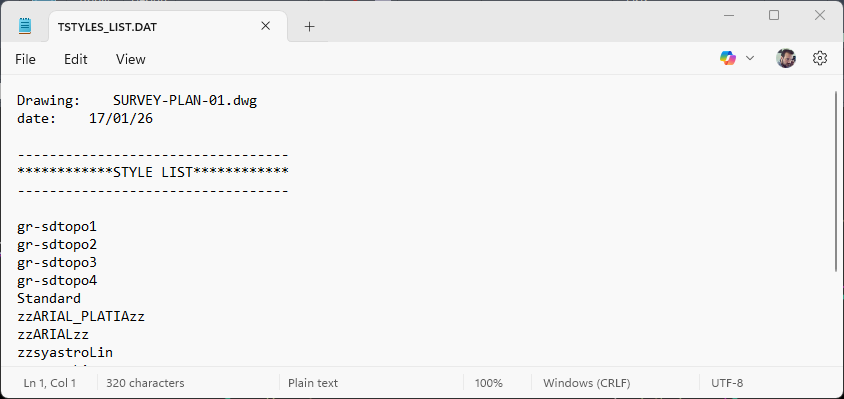
Text Styles List from drawing
^ Back to topDetailed List ZTLS
Opens a file of your choice containing a detailed List (Name, Layer, Color, Height, etc.) of Texts (Text, Mtext, ArcText) that you select in the Drawing.
You select export file and number of texts from the Drawing which are analyzed, divided into categories and each category's elements (Text Style, Layer, Color, Height, etc.) are exported to the file.
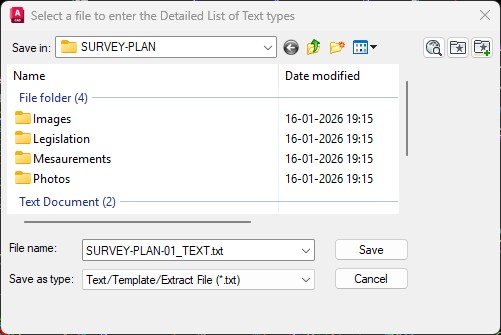
Export file selection
Select file for exporting the elements of each category of texts you select in the Drawing.
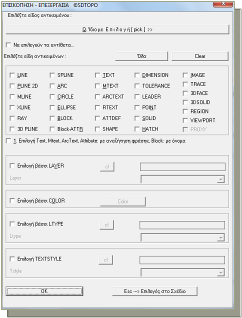
Text selection from drawing
You have the ability to choose in what order the various text categories will be written to the file.
- TStyle: According to font type. (S)
- Layer: According to drawing Layers of categories. (L)
- Color: According to color. (C)
- THeight: According to character height. (H)
- TWidthFactor: According to character width factor. (W)
- TObliquing: According to character slant. (O)
- TRotation: According to text rotation angle. (R)
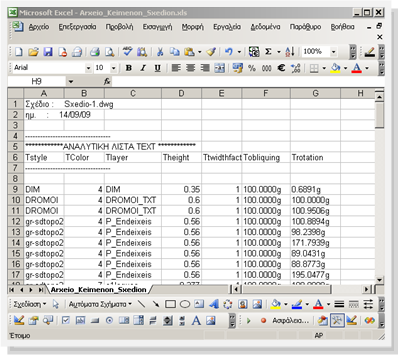
Detailed text list in table format
Once opened you can now manage it and make any changes, deletions, copies, etc.
Notes:
When you export text elements of the Drawing to MsWord (*.doc) or Excel (*.xls) files, the export files are in "Tab delimited text (txt)" format. If you want, after opening the file you can save it in normal doc or xls format.
Command Usage:
After exporting the Text elements to a txt file, you can copy the Text Styles and Color and paste them into the ZYPTT1 and ZYPTT2 command files, completing explanations for the Text Legend.
Tips:
When 2 or more categories appear identical and have identical other elements, then their differences are in the decimals of numbers for TextHeight, Width, Oblique or Rotation, and that's why they appear in the file.
If you have such a case, you should investigate why texts that you want with identical characteristics are drawn slightly differently from each other.