AutoCAD Plot Scale Management
SDBox Design Software - Command guide for setting and managing drawing scale in CAD drawings
Plot Scale Overview
Defines the plot scale which is permanently displayed during drawing, at the bottom right of the screen.
If the drawing is empty of objects, the Ltscale will be automatically set so that the same scale is suggested when reopening the drawing.
Scale Determination
Depending on the selected plot scale, the size of Blocks, Text, Dimensions, Hatch and the Ltscale of objects inserted or drawn with SDBOX commands are determined so that they print correctly.
This concerns the size of drawing symbols during their insertion so that they print with clarity.

Plot scale selection interface
Scale Flexibility
You can select and draw in any scale you wish to print. You can also change the scale during the drawing process.
Notes:
* Setting the plot scale does not affect objects already existing in the Drawing or other programs that work with scale.
* Especially for scale 1:50, texts, symbols, and line types are inserted so that they are at least clear even for printing at 1:100. This setting can be changed with the 50100SCALE command.
Command Usage:
You can use different plot scales in the same Drawing as many times as you want (e.g., for Details, partial prints, etc.).
Note: With the ASD command you can insert the following scale Block into any drawing and it will print normally according to the plot scale:
Tips:
If in an existing Drawing you decide to change the plot scale, then do the following:
Change Plot Scale AKLIM
The plot scale is set which is permanently displayed during drawing at the bottom right of the screen.
OK Button:
Cancel Button:
OK Button Function
The scale is set which is permanently displayed during drawing, at the bottom right of the screen. If the drawing is empty of objects, the Ltscale will be automatically set so that the same scale is suggested when reopening the drawing.
Cancel Button Function
No scale is set and commands that require scale do not continue because their size factor cannot be determined.
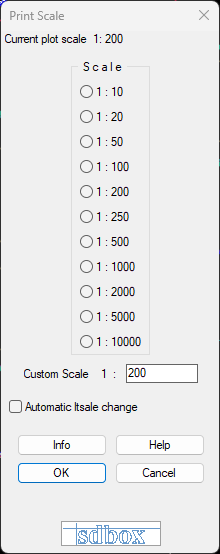
Plot scale change dialog interface
Related Commands
^ Back to topFind Scale based on A4 Paper PHKLIM
The scale is automatically calculated and given as a number according to the "long side" of A4 paper as it is drawn on screen.
You can enter the calculated scale into the AutoCAD print window. If you want the scale to be registered, execute the above "Change Scale" command.
In the following example, where the desired outcome is to print a section of a Plan at a random scale on A3 paper, A3 paper has been inserted on screen (XARTI) and the vertical side (which is the long side of A4) is selected:
Select the long side of A4 paper [29.70cm]:
Select the long side of A4 paper [29.70cm]: Specify second point:
Selection Process
Select the 1st point on screen for the long side of A4 paper.
Select the 2nd point on screen for the long side of A4 paper.
After selecting the 2 points, the scale at which the Drawing should be printed so that A4 prints at its actual dimensions is calculated.
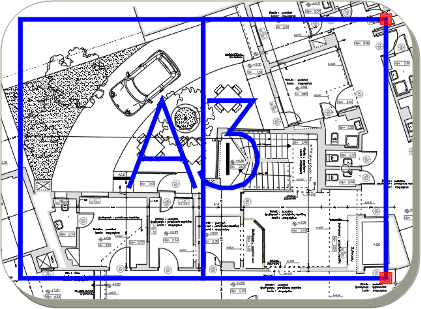
Selecting A4 paper long side for scale calculation
The calculated scale is displayed in the command line, showing the ratio between drawing units and real-world measurements.
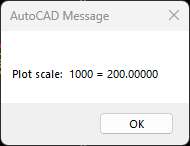
Scale calculation result display
Tips:
This command is particularly useful when you need to determine the appropriate scale for printing a specific area of your drawing on standard paper sizes.
The command considers the actual drawn size of the paper representation in your drawing to calculate the appropriate plot scale.