Coordinates Display at Points (NNXY)
SDBox Design Software - Select points on screen and display coordinates in multiple formats
Coordinates Display Overview NNXY
Select a point on screen and display its coordinates in many different ways.
The display format is defined in the ZNN command tab.
Process
- Select Layer for coordinates to be displayed.
- Select point for coordinates.
- Select side and position for annotation.
Give the LAYER for 'Coordinates to be displayed' :
Select point for coordinates <U=Undo , ENTER=Exit> :
Side and annotation position <ENTER=Undo> :
Configuration Interface
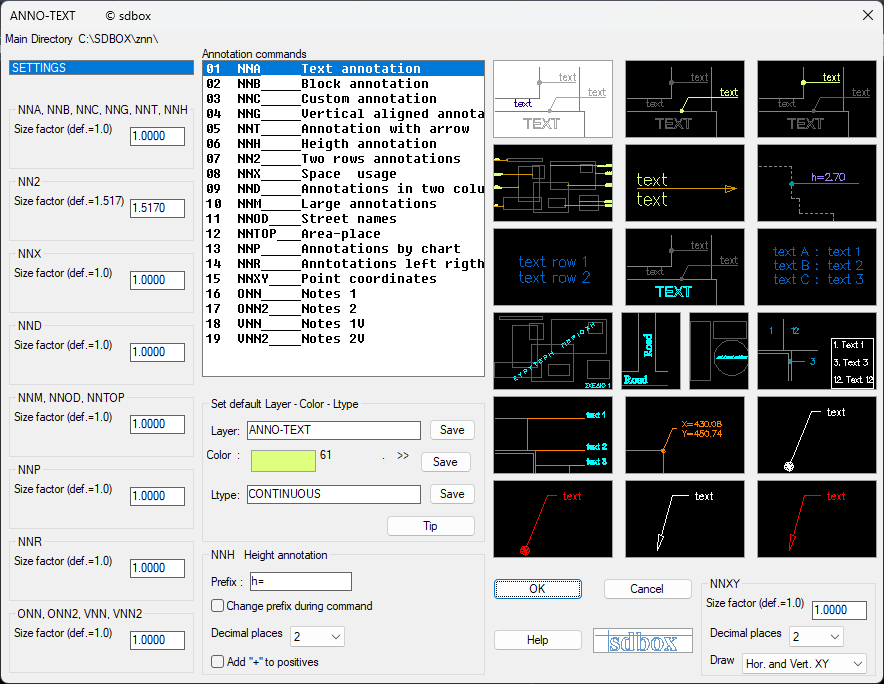
ZNN configuration interface for coordinates display
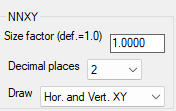
Detailed settings for coordinate display
Notes:
Size Factor (def.=1.0): Affects the size of displayed coordinates.
Decimal places: Affects the displayed decimals of coordinates.
Display: Affects how selected coordinates are displayed. Display is divided into 5 basic types: Horizontal and vertical, Top-bottom, In sequence with comma, In sequence with space, Dot-line.
Configuration Details
Layer Selection
Select the layer for coordinate display.
Point Selection
You give a point on screen for coordinates.
U=Undo: Deletes the last annotation after command start.
Enter=Exit: Ends the command.
Annotation Position
You give the 2nd point on screen where the annotation position is determined. Depending on Ortho ON or OFF you have the following annotation possibilities:
- Above and right of the point
- Below and right
- Below and left
- Above and left
- On point line and right
- On point line and left
- Vertically above the point
- Vertically below the point
Enter=Undo: Cancels the selection of the 1st point and continues with new 1st point for coordinate annotation.
Notes:
In all cases, you give 2 points: the first for the coordinate point and the second for the annotation side.
For the types Top-bottom, In sequence with comma, In sequence with space you can differentiate the display method if you have Ortho ON or OFF during annotation side selection.
Display Types (14 Different Formats)
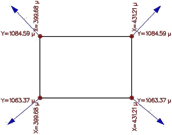
1. Horizontal and Vertical
X is displayed vertically while Y horizontally.
Horizontal and Vertical
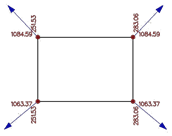
Horizontal and Vertical XY
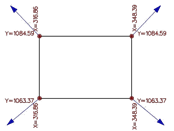
Horizontal and Vertical XY m.
2. Top-Bottom
Coordinates are displayed in 2 rows (X in first row and Y in second).
Top-Bottom
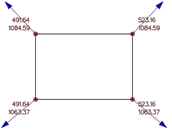
Top-Bottom XY
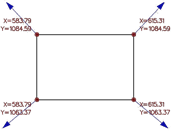
Top-Bottom XY m.
3. In Sequence with Comma
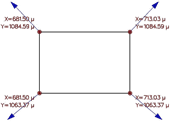
Coordinates are displayed in one row with comma between them.
In Sequence with Comma
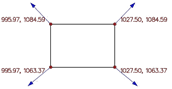
In Sequence with Comma XY
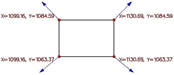
In Sequence with Comma XY m.
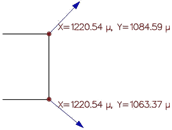
4. In Sequence with Space
Coordinates are displayed in one row with space between them.
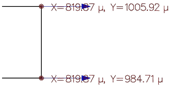
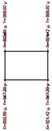
5. Dot-Line
A dot is drawn at the point and a line to the displayed coordinates.
Dot-Line
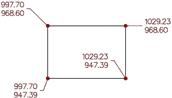
Dot-Line XY
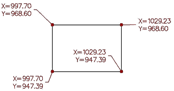
Dot-Line XY m.
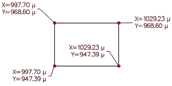
Format Variations:
- Basic: Simple coordinate display
- XY: Adds "X=" and "Y=" before coordinates
- XY m.: Adds "m" at the end of each number
Visual Explanation:
In the following figure, red dots show points for coordinate display (1st point) and blue arrows show annotation side (2nd point):
Command Usage & Tips
Notes:
In all display cases, coordinates are displayed as text, so after insertion you can edit them in bulk with the TTT command for adding prefix or suffix, for searches and replacements, etc.
Command Usage:
Every case where you need to annotate coordinates in the drawing at specific points. Common such cases are basic columns for architectural study, drawing dependency points, wells-tanks, etc.
Tips:
In cases requiring mass coordinate annotation (property vertices, triangulation vertices, OT vertices, etc.) you can insert coordinate tables with the corresponding commands.
For point marking cases you can use the ZZB command.