CAD Drawing Annotations
SDBox Design Software - Command guide for inserting text, blocks, symbols, leaders, coordinates, and notes in CAD drawings
Annotation Selection ZNN
Selection of Annotation command from a tab with size specification capabilities.
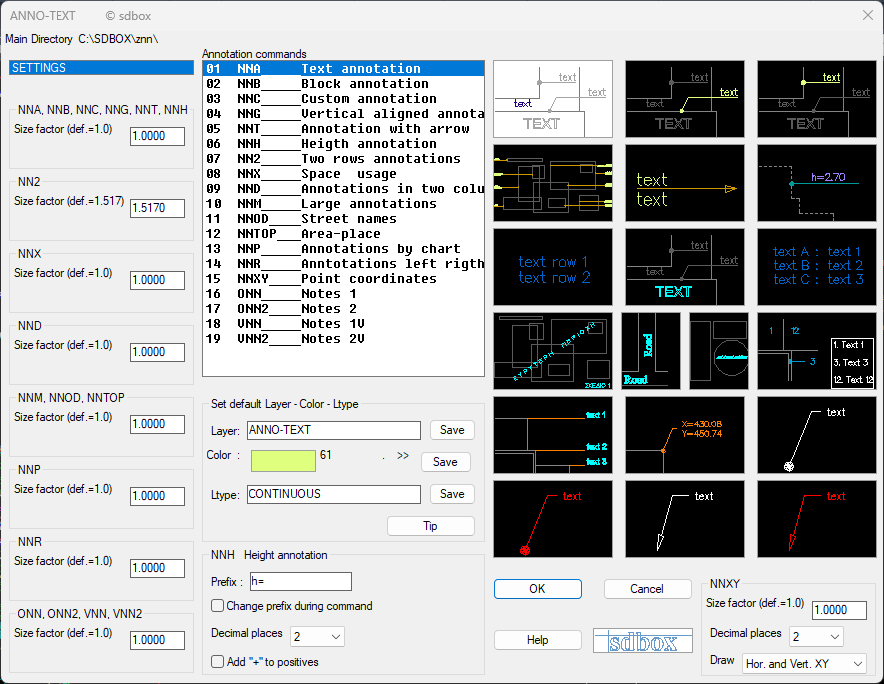
Annotation selection interface
You select the type of annotation you want to add to the Drawing.
The annotation type you select is stored in the command's memory and is suggested in each new use, where you can accept it simply by pressing Enter.
Each annotation command type is analyzed below.
General Note:
Annotations in the Drawing refer to descriptions of lines, objects, areas, etc., or notes for your own reminders.
All annotations (Texts, Blocks, symbols) are inserted into the Drawing in a size proportional to the printing scale.
Annotation with Symbol NNB
Annotations of Block type with symbol and texts above and below the line.
Procedure
- Reference point of the annotation.
- Side and drawing position of the Block.
- Texts above and below the symbol with selection from library.
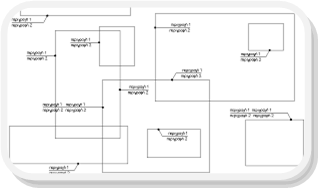
Example of annotation with symbol
Enter the Layer for Symbol Annotations:
Then you select the annotation reference point (dot) and the side that will determine the type of Block to be inserted (top left, top right, horizontal left, bottom right, or horizontal right).
For horizontal ones, select the labeling side with Ortho.
The length of the Block's horizontal lines depends on the length of the texts you select from the libraries:
Text selection from library
After you select the texts for above and below the line, the Block is drawn and the command continues for the next annotation.
You can leave the top and bottom line empty (by pressing Cancel in the respective library). If both are empty, the Block is not drawn.
If in the next annotation you want the same texts, you can simply press Enter when the libraries open.
Notes:
The 36 Blocks that are inserted have names from E2 to E6f.
If you want to manage them collectively, in Block management commands and selection with filters, you can type E#* in the field for Block name. (#: single digit number, *: any or no character).
In all the above Blocks of the command, the Attribute of the top line is named ENDEIXI1 and the bottom one ENDEIXI2. You can manage all Attributes collectively if you want because they have the same name.
Simple Annotation NNA
Annotations (simple text) of a single line.
Procedure
- Text from library.
- Text direction.
- Final Text placement.
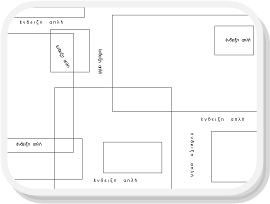
Simple annotation example
Enter the Layer for simple Annotation Text:
Text selection from library
After you select the text, the command continues for angle and final placement on the screen.
If in the next annotation you want the same text, you can simply press Enter when the libraries open.
^ Back to topSpaces... NNX
Annotations (simple text) of a single line for Spaces. The text size is larger than the text of Spaces.
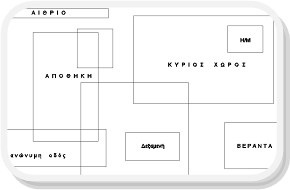
Spaces annotation example
Enter the Layer for Space Annotations:
The library that opens is that of the Spaces.
^ Back to topLarge Annotations NNM
Large Annotations (simple text) of a single line for areas or drawing titles.
Enter the Layer for large Annotations:
The library that opens is that of the Spaces.
^ Back to topRoads / Streets NNOD
Annotations (simple text) of a single line for Roads.
Procedure
- Text from library.
- Text direction.
- Final Text placement.
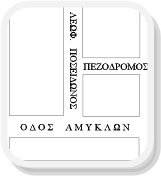
Roads annotation example
Enter the Layer for Roads - Streets:
Roads text selection from library
The library that opens is that of the Spaces.
^ Back to topPlace Names / Areas NNTOP
Annotations (simple text) of a single line for Place Names.
Procedure
- Text from library.
- Text direction.
- Final Text placement.
Place names annotation example
Enter the Layer for Place Names:
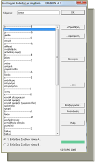
Place names text selection from library
The library that opens is that of the Spaces.
^ Back to topCustom Annotation NNC
Annotations (paragraph of simple text) with reference point and annotation lines.
Procedure: You select the annotation reference point, the start point of text labeling, write the paragraph, and a dot is drawn at the reference point and a line up to the end of the longest phrase.
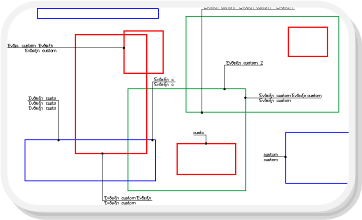
Custom annotation example
Enter the Layer for custom Annotations:
Select annotation reference point <Enter>=Exit :
....Text labeling point <Enter>=Undo :
Text side ?
Enter text :
You write as many text lines as you want. To change text line, simply press Enter.
When you finish with the texts, a horizontal line will be drawn with a length up to the longest text row.
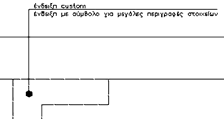
Custom annotation result
Tip:
For selecting the text labeling point, it is recommended to have the ORTHO option On. The drawing is clearer and its elements more distinct when such type of annotations are inserted with vertical lines.
Two-line Annotations NN2
Annotations (simple text) of two text lines.
Procedure
- Texts from libraries.
- Direction of both texts.
- Final placement of Texts.
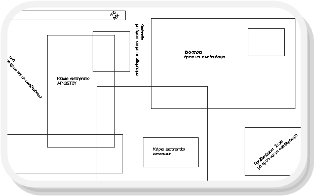
Two-line annotation example
Text selection from library (two libraries open sequentially)
After you select the texts from the respective libraries, the command continues for angle and final placement on the screen for both lines.
If in the next annotation you want the same text, you can simply press Enter when the libraries open.
^ Back to topLeft/Right Annotations NNR
Annotations (simple text) that are aligned right or left from the Drawing and refer to basic areas of the Drawing.
The line connecting the reference point with the annotation text is not continuous (but dots) and no dot is drawn at the reference point.
Left/Right annotation example
Enter the Layer for left - right Annotations:
Default distance from main side? <Yes>:
Select the leftmost or rightmost Main Side of the Drawing:
Select the Annotation Labeling Side:
Select 1st Annotation Point :
....Select the texts from the library :
You select the 1st annotation point. A line (with dots) is drawn from this point up to the end of the annotation lines calculated above.
You select text from the library and it is automatically written after the end of the annotation line.
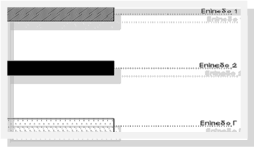
Left/Right annotation result
^ Back to topAnnotation with Line (outside) NNG
Annotations (simple text) with dot and line that are aligned right or left from the Drawing.
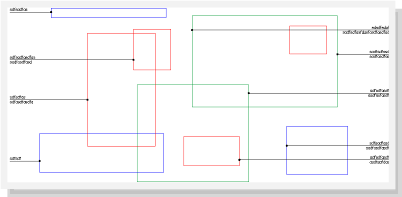
Annotation with line (outside) example
Enter the Layer for Annotations with line (outside):
Default distance from main side? <Yes>:
Select the leftmost or rightmost Main Side of the Drawing:
Select the Annotation Labeling Side:
Select 1st Annotation Point :
Enter text :
You write as many text lines as you want. To change text line, simply press Enter.
The texts are written starting from the end of the annotation line and directed towards the drawing area.
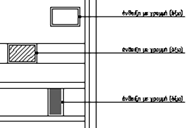
Annotation with line result
^ Back to topTwo-column Annotations NND
Annotations (simple text) of two columns with selections from libraries.
You select from 2 libraries the texts of each column and after giving the starting labeling point, the columns are drawn automatically aligned.
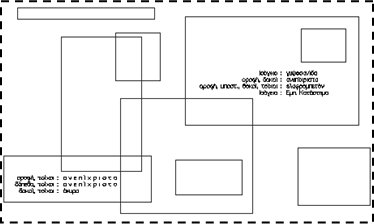
Two-column annotation example
Enter the Layer for 2-line Annotations:
....Select the texts of the 1st line :
Select insertion point or <Enter=Undo> :
..Select the texts of the 2nd line :
Text selection from library (two libraries open, one for each column)
You continue with the selections of the next texts for each column from the libraries.
The texts from here on are drawn automatically on the screen below the previous ones of each column.
^ Back to topTable Annotations NNP
Insertion of horizontal annotations (with dot and line or only text) with selection from a predefined list of descriptions.
You configure a table (which can be common for all your Drawings) each row of which mentions the type and description, then you place annotations with the types in the Drawing, and you have the ability to insert a memo with the types and descriptions.
The most common use of the command is for labeling materials in an elevation, where materials are categorized by number (1, 2, …) so they don't occupy drawing space in the Elevation, and based on a description file for each material, a memo of material explanations is placed outside the Drawing.
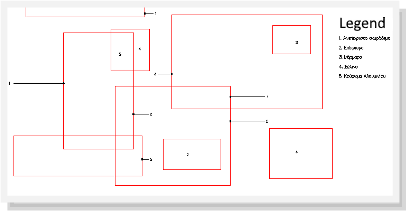
Table annotation example
Enter the Layer for Table Annotations:
Configuration — Table Preview:
You select a file, configure it according to the above instructions, save it, and close it.
You execute this procedure when you want to define or select another file or when you want to add descriptions.
It is recommended to create template files that you use in all Drawings.
If you agree with the file listed at the bottom of the tab and do not want to make changes, then when the tab opens press directly ">>> continue".
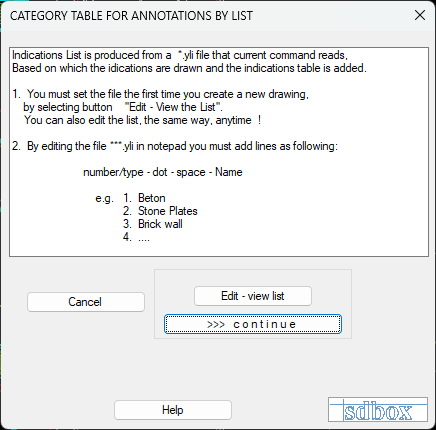
Table configuration interface
Example file
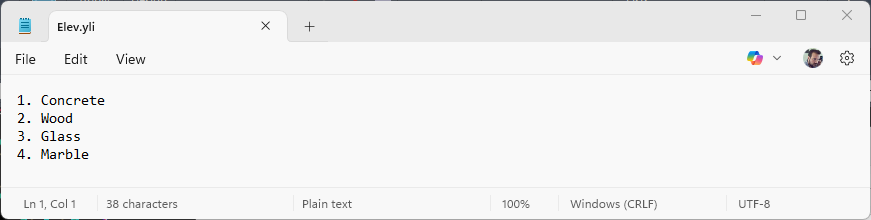
Example table file structure
last line length=1.00 SIDE AND LABELING POSITION <ENTER = only number> :
You select the annotation reference point (dot).
Then you select the 2nd point up to which the annotation line will be drawn. You can type line length. You are reminded of the last line length drawn with the command and if you want you can put the same so that annotations are uniform.
Tip:
For selecting the 2nd point, it is recommended to have the ORTHO option On. The drawing is clearer and its elements more distinct when such type of annotations are inserted with horizontal lines.
If you want the annotation to have only a number then simply press Enter.
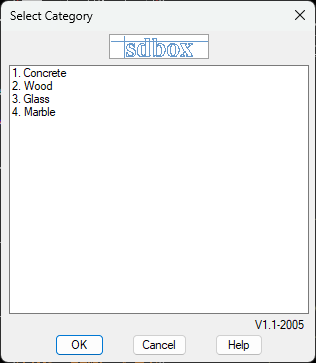
Category selection for table annotation
After you give a point or choose to label only a number, then you select a category from the tab that opens.
From the category you select, only the number is written in the Drawing.
You continue with the next Annotations and at the end you choose whether a Memo of Annotation descriptions will be inserted.
It is recommended to insert a Memo when you have finished with the annotations.
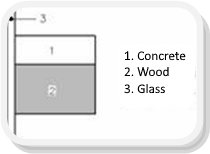
Final annotation with table/memo
^ Back to topNotes-1,2 (Leader with Dot or Arrow) ONN, ONN2, VNN, VNN2
Insertion of notes of Leader type (with dot ONN, ONN2 or arrow VNN, VNN2).
The 4 commands follow the same procedure and are divided into 2 with dot and 2 with arrow with the main purpose of having the type of 2 suggested Layers depending on the category of notes.
These commands have been created for your own notes that are not finally printed in the Drawing. You can of course make any other use.
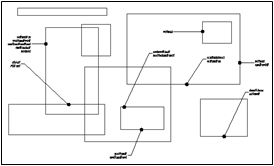
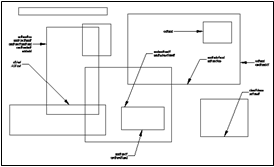
Leader annotations: with dot (left) and with arrow (right)
The command procedure is as follows:
You select the 1st annotation reference point, 2nd point for line end and start of text labeling, and write as many text lines as you want.
^ Back to topAnnotation with Arrow NNT
Annotation with arrow (simple text) of multiple rows.
Procedure:
- Point and direction of annotation.
- Texts on the screen (as many rows as you want).
The arrow is always drawn at the same length.
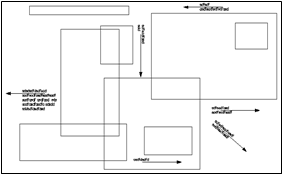
Annotation with arrow
^ Back to topHeights (from floor) NNH
Insertion of height annotation Block with calculation and operation capabilities.
The command has been designed for labeling height of elevation elements (roof beams, roof steps, eaves projection, canopies, etc.).
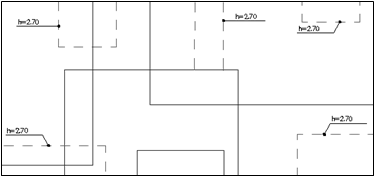
Height annotation example
Enter the Layer for Height Annotations (from floor):
Element type ? <h=> :
*[E= select Number]*[D= DA]*[P= Operations]*[!= select Z]* [!!= Z line Interpolation]*
E/D/P/!/!! write number Height ? <1.5>:
Then you select the annotation reference point (dot) and the side that will determine the type of Block to be inserted.
You select what will be written before the number. Each new prefix is suggested for the next symbol.
Link to Calculations and Operations details
You continue with the next height annotation.
^ Back to topCoordinate Labeling NNXY
Labeling of Coordinates of each point you select on the screen.
You select a point and labeling side on the screen and the coordinates are written in 14 different ways.
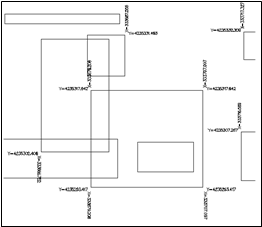
Coordinate labeling interface (click for details)
^ Back to topSelection - List Configuration ZVFE
Opens a tab where you can view and edit the files that participate in various commands.
You can also select which file category each command will read when executed.
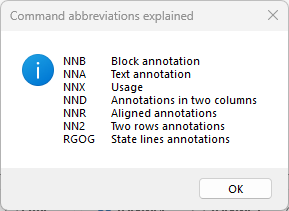
Command files configuration interface
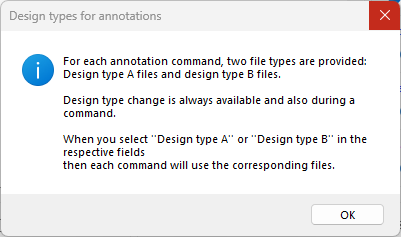
File selection example
^ Back to top